

Have you noticed bright spots or uneven lighting around the edges of your laptop screen? This problem is called screen bleeding, and it happens when light from the backlight leaks through the edges or corners of your display. The issue is most visible when you’re watching dark scenes in movies or using your laptop in a dim room.
You can fix screen bleeding on your laptop by adjusting your display settings, applying gentle pressure to affected areas, updating graphics drivers, checking for loose connections, or using software solutions to optimize your backlight. Some cases of screen bleeding can be resolved quickly with simple fixes you can do at home. More severe cases might need professional repair or screen replacement.
Understanding what causes this problem helps you choose the right solution. Screen bleeding often results from manufacturing defects, physical damage, or problems with how the LCD layers are aligned. The good news is that many fixes don’t require technical skills or expensive repairs.
Key Takeaways
- Screen bleeding appears as bright spots or uneven lighting around your laptop display edges, especially visible in dark scenes
- You can try several home fixes including adjusting display settings, updating drivers, applying gentle pressure, or using calibration software
- Prevention involves careful handling of your laptop, avoiding pressure on the screen, and keeping it away from extreme temperatures
Understanding Screen Bleeding on Laptops
Screen bleeding affects how your laptop display shows dark images, causing unwanted light to leak through certain areas. This issue stems from backlight problems and varies in type and severity.
What Is Screen Bleeding
Screen bleeding occurs when light from your laptop’s backlight leaks through the LCD panel in areas where it should appear black or dark. Your screen’s backlight sits behind the display and lights up the pixels you see. When the layers of your screen don’t align properly or pressure builds up in certain spots, light escapes where it shouldn’t.
This creates visible bright spots or glowing areas that become obvious when you watch dark scenes in movies or look at black backgrounds. Laptop screen bleeding is most noticeable in dim rooms or when your brightness is set high. The issue doesn’t damage your laptop or spread over time, but it does affect your viewing experience.
Most modern laptops use LED backlights, which can develop backlight bleed during manufacturing or after physical stress to the screen.
Types of Screen Bleeding
Backlight bleed appears as bright spots or patches near the edges and corners of your screen. This happens when light leaks from the backlight through gaps in the panel assembly. You’ll notice backlight issues more when displaying completely black images.
Edge bleeding is a specific form of backlight bleed that shows up along the borders of your display. The light creates a glowing line or strip around the screen’s perimeter.
Clouding looks like uneven brightness across your screen, appearing as lighter patches in the middle rather than the edges. These cloudy areas create a spotty, inconsistent look on dark backgrounds. Clouding results from uneven pressure on the LCD panel or manufacturing defects.
IPS glow affects IPS panels specifically and appears as a whitish glow in the corners when you view the screen at certain angles. Unlike true screen bleeding on laptop displays, IPS glow is a characteristic of the panel technology itself.
Signs and Symptoms
You’ll spot laptop screen bleed by displaying a completely black image on your screen in a dark room. Set your brightness to 100% and look for any lighter areas, bright spots, or glowing patches. These areas should be pure black but instead show gray, white, or colored light.
Uneven brightness becomes obvious when you watch movies with dark scenes or use your laptop at night. You might see light bleeding from corners, edges, or random spots across the display. The glow intensifies when you increase brightness and almost disappears at lower brightness levels.
Test your screen by opening a black image in full-screen mode or visiting a black screen test website. Move your viewing angle slightly to distinguish between backlight bleed and IPS glow.
Common Causes of Screen Bleeding
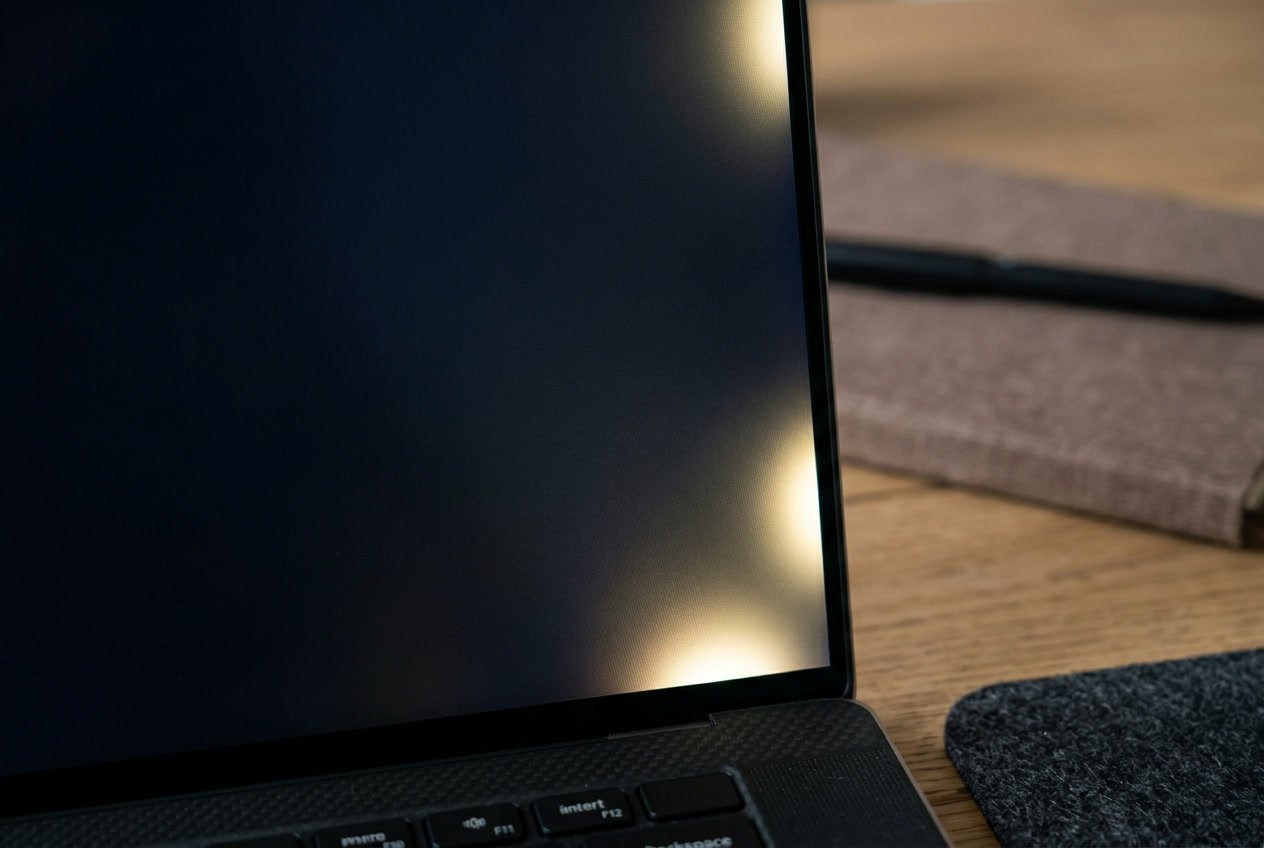
Screen bleeding happens when light from your laptop’s backlight leaks through the edges or corners of your display. This backlight leak creates uneven brightness that you’ll notice most when viewing dark images or videos.
Manufacturing Defects
Manufacturing defects are a primary cause of backlight bleeding in laptop screens. During production, the LCD layers need precise alignment with the backlight and color filters. When factories don’t maintain strict quality control, you might get a laptop with improperly assembled display components.
Some manufacturers use lower-quality materials to cut costs. These subpar components can fail to block the backlight properly from the start. The issue often appears as bright spots or glowing edges around your screen’s perimeter.
Factory assembly problems include uneven pressure distribution across the LCD panel. Workers might overtighten screws during assembly, which pushes the display layers out of alignment. You may also receive a unit where the frame doesn’t sit flush against the screen, allowing light leakage through small gaps.
Quality control variations between different production batches mean two identical laptop models can have different screen quality levels.
Physical Damage and Pressure
Dropping your laptop or applying too much pressure to the screen causes the delicate LCD layers to shift out of position. Even closing your laptop lid too forcefully can create pressure points that lead to backlight leak over time.
Carrying your laptop in a tight bag creates constant pressure on the display. This pressure can gradually damage the backlight or misalign the liquid crystal layer. You might notice screen bleeding developing in areas where your bag’s contents pressed against the lid.
Accidental impacts don’t always crack your screen visibly. Internal damage to the backlight assembly can occur without obvious external signs. Touching or poking your screen with your finger repeatedly also creates localized pressure that disrupts the display’s structure.
The corners and edges of your screen are most vulnerable to physical damage because they have less structural support than the center.
Aging Components
Your laptop’s backlight elements deteriorate naturally over time. The LED or fluorescent lights that illuminate your screen lose their uniform brightness as they age. This degradation creates uneven light distribution that appears as screen bleeding.
Temperature changes from regular use cause the adhesive holding LCD layers together to weaken. After several years, this adhesive breakdown allows the layers to separate slightly, creating gaps where light escapes. Your display’s materials also become less flexible with age.
Wear and tear affects the entire display assembly, not just the backlight. The plastic frame holding everything in place can warp from repeated heating and cooling cycles. Metal components may develop micro-fractures that alter how they hold the screen layers.
Laptops used for 3-5 years typically show more backlight bleeding than newer units, even without visible damage.
Screen Quality Differences
Different LCD panel manufacturers produce screens with varying levels of backlight control. Budget laptops often use cheaper panels that lack advanced edge-lit backlighting technology. These lower-tier displays are more prone to light leakage from the beginning.
Edge-lit displays position LED lights around the screen’s perimeter rather than behind it. This design makes consistent backlighting harder to achieve and increases bleeding risk. Direct-lit panels cost more but distribute light more evenly.
Even the same laptop model can have different screen quality depending on which supplier provided the panel. Manufacturers often source displays from multiple vendors to meet production demands. One panel maker might maintain tighter tolerances than another, resulting in better or worse backlight bleeding across identical laptop models.
Premium laptops typically invest in higher-grade LCD panels with better light diffusion layers that minimize bleeding issues.
Diagnosing Screen Bleeding Versus IPS Glow
Screen bleeding and IPS glow look similar but have different causes. Testing your laptop in specific conditions helps you identify which issue affects your display.
Black Screen Test
Open a completely black image or video in full-screen mode. Turn off all lights in your room and make it as dark as possible.
Let your eyes adjust to the darkness for about 30 seconds. Look at your screen from directly in front at your normal viewing distance.
What to look for:
- Bright spots or patches that stay in the same place
- Light coming from the edges of the screen
- Areas that look brighter than the rest of the black screen
Take note of where you see bright areas. These spots will help you tell the difference between screen bleeding and IPS glow in the next steps.
Check for Uneven Lighting
Screen bleeding appears as bright spots or light leaks along the edges. The brightness stays constant no matter how you move your head or change your viewing angle.
Press gently around the bezel and corners of your screen. If the bright spots get worse or better when you apply pressure, you likely have screen bleeding. This happens when the LCD panel has too much pressure on it.
Screen bleeding characteristics:
- Stays in fixed locations
- Doesn’t change with viewing angle
- Often appears at corners or edges
- May worsen with pressure on the bezel
Differentiate IPS Glow from Bleeding
IPS glow changes based on your viewing angle. Move your head left and right, then up and down while looking at the black screen.
IPS glow will shift, change intensity, or disappear as you change positions. It typically appears as a whitish or colored glow in the corners. This is normal for IPS panels and not a defect.
Screen bleeding remains in the same spot regardless of your viewing angle. The light looks white or slightly colored and doesn’t move when you move.
Key differences:
| IPS Glow | Screen Bleeding |
|---|---|
| Changes with viewing angle | Stays in same location |
| Normal panel characteristic | Display defect |
| Appears at extreme angles | Visible from all angles |
| Usually symmetrical | Often irregular patches |
Step-by-Step Methods to Fix Screen Bleeding
You can fix screen bleeding through several practical adjustments that address both software settings and physical components. These methods range from simple display tweaks to careful hardware adjustments.
Adjust Display Settings
Your first step in fixing screen bleeding should be adjusting your laptop’s display settings. Open your display settings by right-clicking on your desktop and selecting display or screen options. Reduce the brightness level to around 60-80% since higher brightness makes backlight bleed more visible.
Lower the contrast setting gradually while checking if the bleeding becomes less noticeable. You can also adjust the gamma settings to help balance the light distribution across your screen. Navigate to your graphics control panel through your GPU manufacturer’s software for more advanced options.
Perform a screen calibration using Windows built-in calibrator or third-party tools. Type “calibrate display color” in your Windows search bar to access this feature. Follow the on-screen instructions to optimize your display’s color balance and brightness levels.
Test different color profiles available in your system settings. Some profiles may minimize the appearance of screen bleeding better than others.
Apply Gentle Pressure with a Microfiber Cloth
Using a microfiber cloth can help redistribute pressure points causing screen bleeding. Turn off your laptop completely and unplug it from power before starting this process. Fold a clean microfiber cloth into a small square about the size of your thumb.
Locate the areas where backlight bleed appears most prominent on your screen. Apply very gentle pressure using the cloth-covered fingertip in small circular motions around these spots. Work slowly and carefully without pressing too hard since excessive force can damage the LCD layers.
Move the cloth across the affected areas for 5-10 seconds at each spot. The goal is to help realign the liquid crystal layers that may have shifted. Check your progress by turning on the laptop and displaying a completely black screen.
Repeat this process 2-3 times if needed, but take breaks between attempts. This method works best for minor bleeding caused by slight misalignment rather than manufacturing defects.
Tighten or Loosen Screws
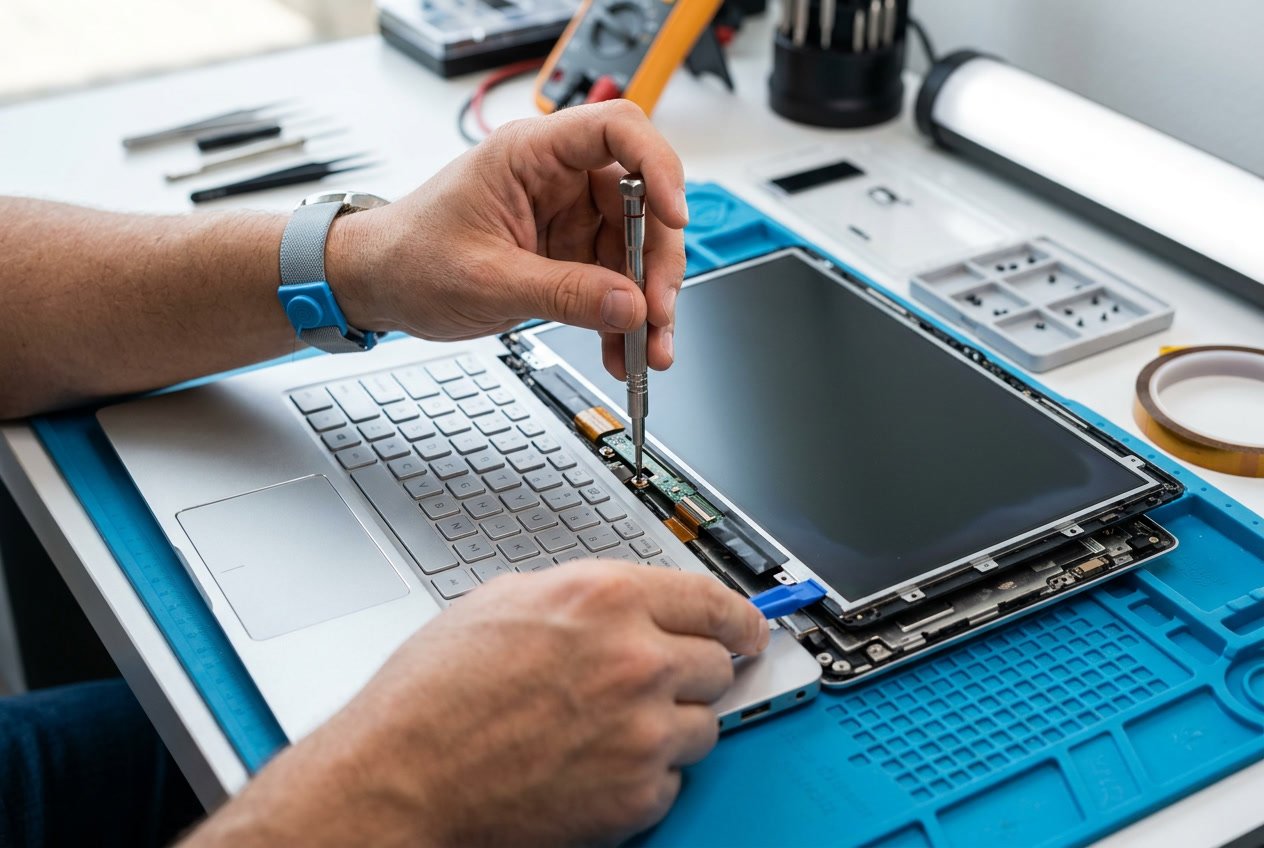
The bezel screws around your laptop screen can affect how tightly the display components fit together. Remove the bezel carefully by locating all screws, which are often hidden under rubber covers or stickers. Use a small Phillips head screwdriver appropriate for laptop screws.
Check if screws are too tight first, as over-tightening creates pressure points that cause bleeding. Loosen each screw by a quarter turn and test the display. If the bleeding remains or worsens, you may need to tighten loose screws instead.
Work methodically around the entire bezel, adjusting one screw at a time. Pay special attention to corners where bleeding typically occurs most. Keep screws at even tension levels across all sides of the display.
Be extremely careful not to strip the screws or crack the bezel during this process. Mark the original position of each screw if you’re unsure about proper tension.
Test After Each Adjustment
Testing helps you identify which method actually improves your screen bleeding problem. Display a completely black image or video on full screen after each adjustment you make. Dark content makes backlight bleed most visible and easier to evaluate.
Use a test pattern specifically designed for detecting screen bleeding. Open the image in full-screen mode and examine all edges and corners carefully. Take photos before and after each fix to compare results objectively.
Check the display in a dark room where ambient light won’t interfere with your assessment. Note which areas improved and which still show bleeding after each change. This helps you decide whether to continue with a particular method or try a different approach.
Keep track of what settings or adjustments worked best. You may need to combine multiple methods to achieve the best results for your specific laptop.
Advanced Solutions and Professional Repairs
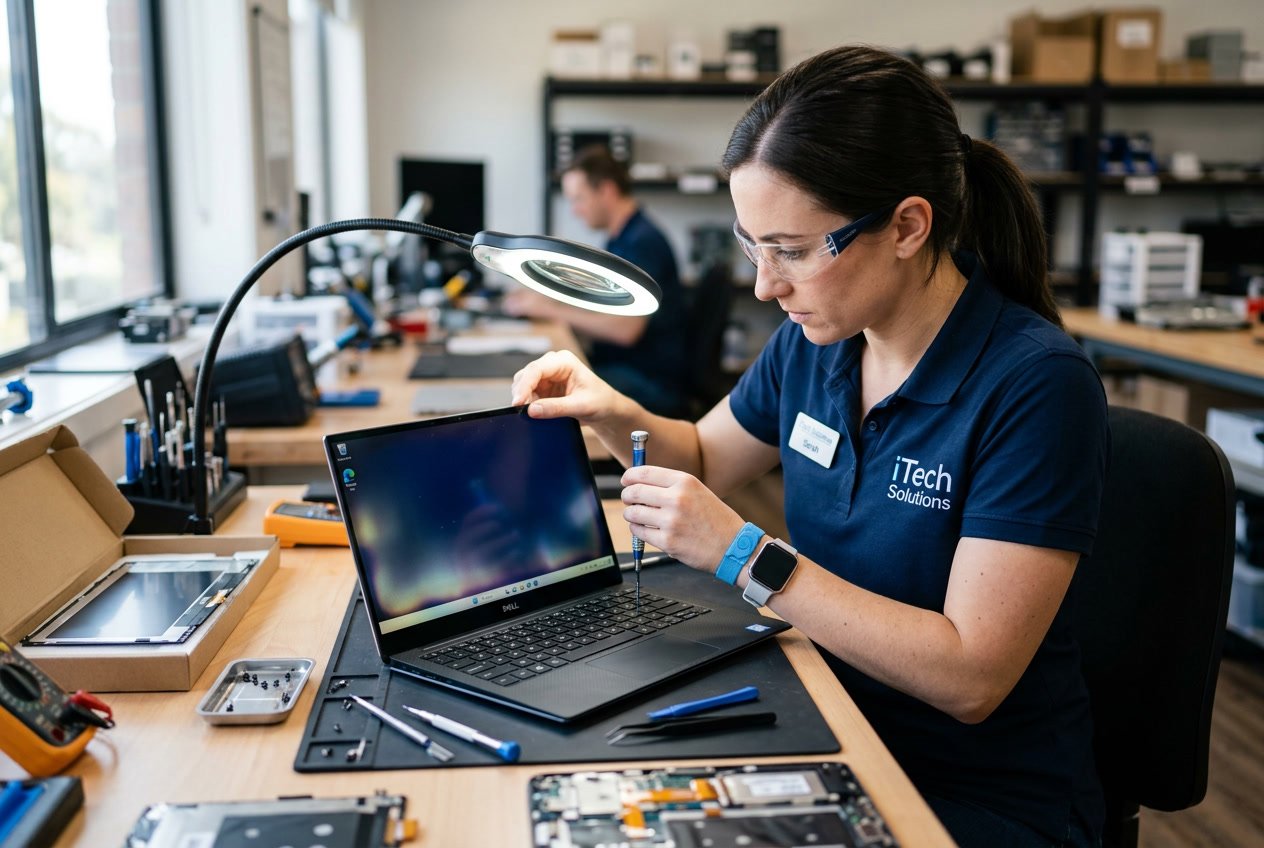
When basic fixes don’t work, you need more serious solutions like screen replacement or professional help. Some options can extend your laptop’s life while others require expert technicians or warranty claims.
Use a Screen Protector
A screen protector won’t fix existing screen bleeding, but it can prevent the problem from getting worse. The protector adds a layer of protection between your screen and the laptop lid when closed.
This reduces pressure on the LCD panel during transport or storage. Choose a tempered glass protector rather than a plastic film for better protection. The glass type distributes pressure more evenly across the screen surface.
Apply the screen protector carefully to avoid air bubbles. Clean your screen thoroughly before application. Keep in mind this is a preventive measure, not a cure for bleeding that already exists.
Replace the Screen
Screen replacement is the most effective fix for screen bleeding on a laptop. You can buy a replacement LCD panel online for $50 to $300 depending on your laptop model.
The process requires removing the bezel, disconnecting cables, and installing the new panel. You’ll need a small screwdriver set and plastic pry tools. Watch tutorial videos specific to your laptop model before starting.
If you’re not comfortable with electronics, the repair can damage other components. Label all cables and screws during disassembly. Take photos at each step to help with reassembly.
New screens typically come with a 30 to 90 day warranty. Make sure you order the exact model number that matches your current display.
Seek Professional Repair Services
Professional repair services have the tools and experience to replace your screen safely. Local computer repair shops charge between $150 and $400 for screen replacement including parts and labor.
Authorized service centers cost more but use genuine parts. They also maintain your manufacturer warranty if it’s still active. Independent repair shops offer lower prices but may use third-party screens.
Get quotes from at least three different shops. Ask about their warranty on the repair work. Most reputable shops offer 30 to 90 day guarantees on their work.
The repair usually takes one to three days. Back up your data before handing over your laptop.
Evaluate Warranty Coverage
Check if screen bleeding is covered under warranty before paying for repairs. Most manufacturers cover defects in materials and workmanship for one to three years.
You need to prove the bleeding resulted from a manufacturing defect, not physical damage. Take clear photos of the screen bleeding in a dark room. Document when you first noticed the problem.
Contact your manufacturer’s support team with your laptop’s serial number. They’ll determine if your issue qualifies for free repair. Some brands consider minor screen bleeding normal and won’t cover it.
Accidental damage protection plans may cover screen bleeding even if standard warranty doesn’t. Extended warranties purchased separately often include screen defects. Review your warranty documentation or call support to confirm your coverage.
Preventing Screen Bleeding in the Future
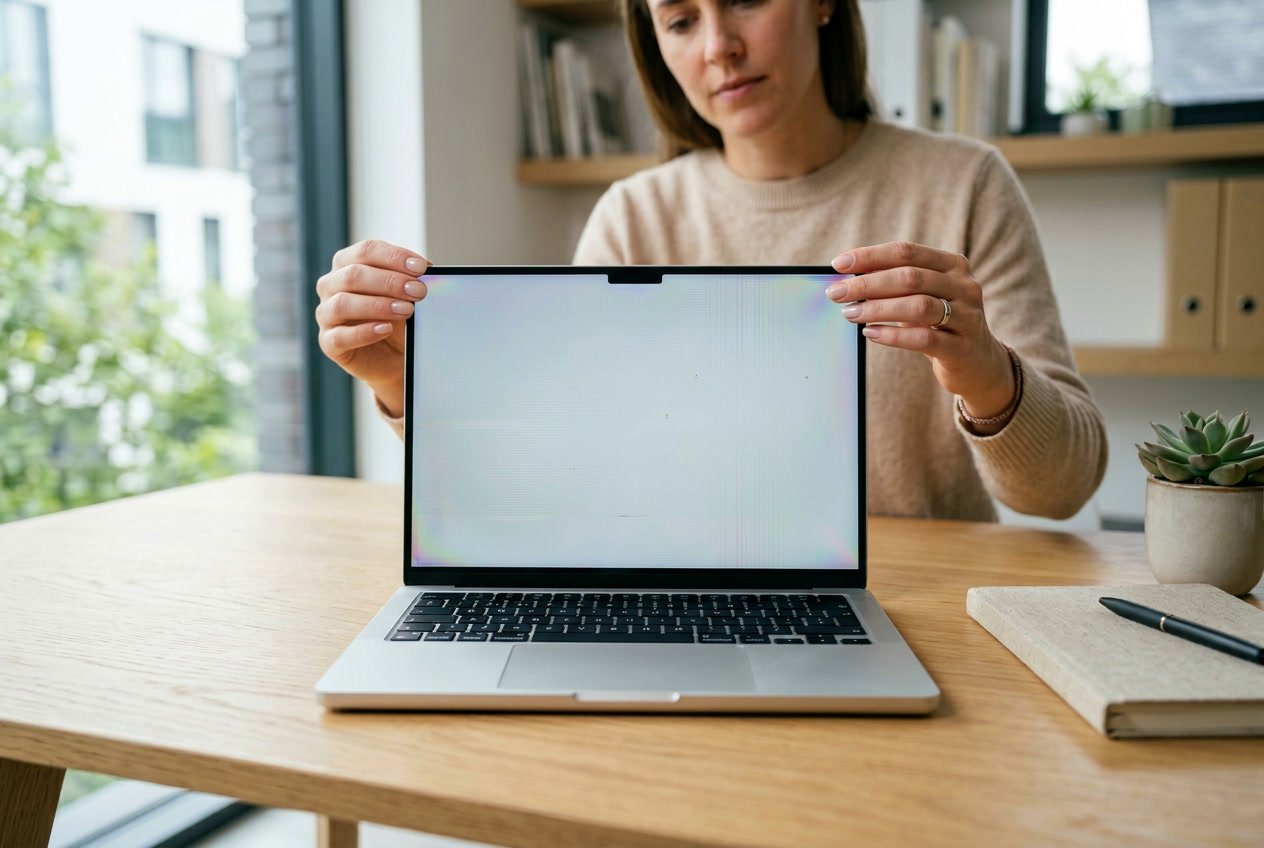
Taking proactive steps can help you avoid screen bleeding issues before they start. Proper handling, regular maintenance, and smart purchasing decisions will protect your laptop display from developing backlight leaks and uneven brightness.
Handle Laptops with Care
Physical damage is one of the main causes of screen bleeding. Never place heavy objects on top of your closed laptop, as this can create pressure points on the display that lead to backlight issues.
When you carry your laptop, always use a padded case or sleeve for protection. Avoid gripping the laptop by its screen corners when opening or closing the lid. Instead, open your laptop from the center of the display to distribute pressure evenly.
Don’t touch or press directly on the screen surface with your fingers or any objects. Even light pressure can misalign the LCD layers over time. If you need to clean your screen, use minimal pressure with a soft microfiber cloth.
Store your laptop in a cool, dry place away from extreme temperatures. Heat and humidity can damage the display components and cause the liquid crystals to deteriorate faster.
Regular Cleaning and Maintenance
Dust buildup around your laptop’s display can trap heat and affect screen performance. Clean the area around your screen bezel every few weeks using compressed air.
Keep your laptop’s cooling system working properly by cleaning the vents regularly. Overheating can damage display components and contribute to screen bleeding over time. Make sure air can circulate around your laptop when you use it.
Wipe your screen gently with a microfiber cloth designed for electronics. Avoid using harsh chemicals or paper towels that can scratch the surface. A slightly damp cloth with distilled water works best for removing smudges.
Update your laptop’s drivers and firmware regularly to prevent screen bleeding from software conflicts. Check your manufacturer’s website every few months for new updates that might improve display performance.
Choose Displays with Better Build Quality
When you buy a new laptop, research the screen quality before making a purchase. Higher-end displays with better manufacturing standards are less likely to develop bleeding issues.
IPS panels generally have better build quality than cheaper TN panels. Look for laptops with displays that have good reviews specifically mentioning minimal backlight bleed. Read user experiences and professional reviews that test for screen uniformity.
Avoid budget laptops with very thin bezels if possible, as these designs sometimes compromise display stability. The frame around the screen helps keep pressure distributed evenly across the panel.
Check the warranty coverage for screen defects before you buy. Some manufacturers offer better protection against display issues than others.
Upgrade Display Settings and Drivers
Keep your graphics drivers current to maintain optimal display performance. Outdated drivers can cause display irregularities that make existing screen bleeding worse.
Adjust your brightness to moderate levels rather than maximum settings. Running your screen at full brightness constantly puts extra stress on the backlight and can accelerate wear.
Use your operating system’s built-in display calibration tools to optimize color and brightness distribution. This won’t fix existing screen bleeding, but it can help you notice problems early.
Enable automatic brightness adjustment if your laptop has an ambient light sensor. This feature reduces strain on your display by adjusting brightness based on your environment.
Final Thoughts
Screen bleeding is a common display issue that affects many laptop users. It happens when light from the backlight leaks around the edges or corners of your screen, creating uneven brightness.
You now understand that this problem can stem from various causes. Manufacturing defects, physical damage, and aging components are among the most common reasons. Environmental factors like temperature and humidity can also play a role.
The good news is that you have several options to address this issue. Start with simple solutions like adjusting your display settings or updating your graphics drivers. These quick fixes require no technical expertise and cost nothing.
If software adjustments don’t help, you can try physical methods. Gently applying pressure around affected areas might redistribute the liquid crystals. You can also check for loose connections between your display and laptop.
Here are your next steps:
- Test basic software fixes first
- Inspect your screen for visible damage
- Try calibration tools built into your system
- Consider professional repair if needed
Remember that not all screen bleeding is fixable at home. Severe cases often require professional attention or screen replacement. Weigh the repair costs against your laptop’s value before making a decision.
Your viewing experience matters. Take action when you notice screen bleeding to prevent it from getting worse over time.