
ASUS Chromebook Flip CX1 Review: Who It’s Best For (and Who Should Skip)
A practical 2-in-1 Chromebook with touch and solid battery habits—just don’t expect fast performance under heavy multitasking.
- Best for: browser-based work/school, docs, email, and streaming—plus occasional tablet mode.
- Highlights: 14″ FHD 360° touchscreen, Wi-Fi 6, and useful ports (USB-A, USB-C, microSD).
- Trade-offs: Intel Celeron N4500 can feel slow with many tabs/apps; 128GB eMMC isn’t as fast as an SSD.
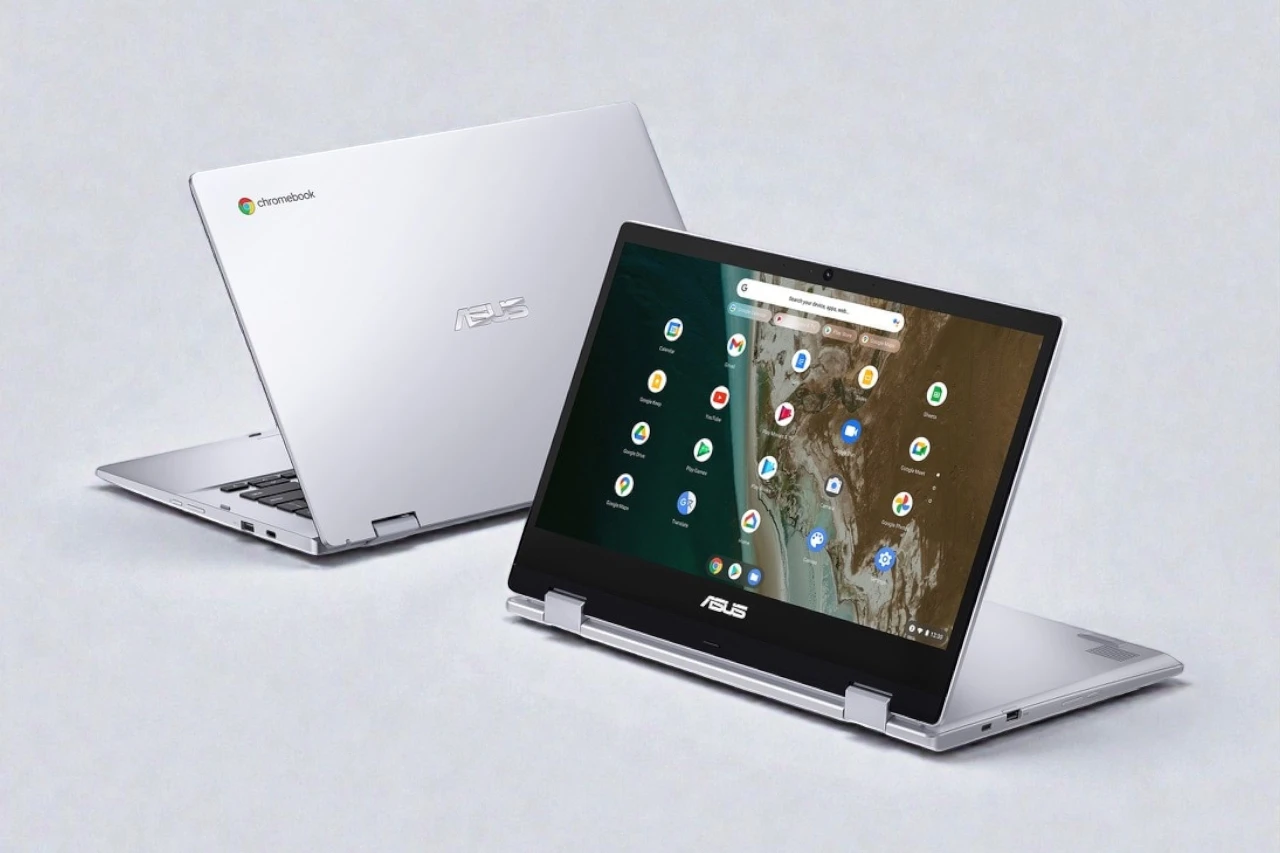
The ASUS Chromebook Flip CX1 (CX1400FKA-AS88FT) is a 14-inch, 2-in-1 Chromebook built around an entry-level Intel Celeron N4500, 8GB RAM, and 128GB eMMC storage. It’s meant to be a simple, reliable “Chrome + Google apps” machine that can also flip into tablet mode when you want touch-first use.
I picked this one for a specific reason: I wanted a touchscreen 2-in-1 Chromebook with good day-to-day battery life for work-style tasks—docs, web apps, email, and streaming—without dealing with Windows updates or heavy background processes.
At its list price ($369.99), it’s not the cheapest way to get ChromeOS. So the real question is whether the touch + convertible design, durability focus, and battery life are worth paying extra for versus a basic clamshell Chromebook.
Quick Verdict
Best for: people who want a straightforward 2-in-1 Chromebook for work/school basics, with touch and solid battery habits.
Why it works well: fast setup, flexible 360° hinge, and a “simple and stable” ChromeOS experience that fits everyday productivity.
Main compromise: Celeron performance (and eMMC storage) can feel limiting if you expect snappy “real laptop” speed under heavier multitasking.
At a Glance
- CPU: Intel Celeron N4500
- GPU: Integrated graphics
- RAM / Storage: 8GB RAM / 128GB eMMC
- Display: 14″ FHD (1920×1080) touchscreen
- Weight: ~3.59–3.6 lbs
- Battery (claimed vs my use): up to 11 hours claimed; I averaged ~7–8 hours in typical work use, with longer possible in lighter workflows
- Wireless: Wi-Fi 6, Bluetooth 5.2
- Ports: 2× USB-C, 2× USB-A, microSD card slot, audio jack
Test conditions (real use):
- Workload: Gmail, Google Docs/Sheets, lots of tabs, YouTube, light Android apps, occasional video calls, quick file transfers (microSD)
- Setup: phone-based Chromebook setup (QR pairing)
- Notes: I also tried installing Steam to see what was realistic (spoiler: “some,” not “most”).
Who This Laptop Is For
This Chromebook makes the most sense for people who live in a browser all day and want the flexibility of touch and tablet mode.
It’s a strong fit if you:
- Do most of your work online: Docs, email, web dashboards, Notion-type tools, and streaming.
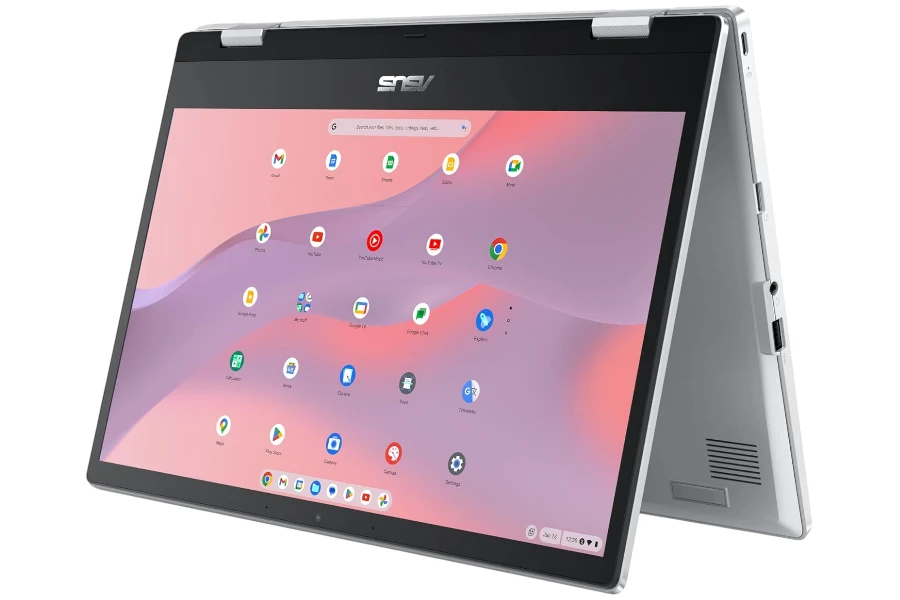
- Want a 2-in-1 you can flip into tablet/stand/tent modes for reading, watching, or quick touch interactions.
- Prefer a machine that feels “low drama”: quick setup, simple updates, and generally stable performance.
- Like having USB-A ports still available (many cheap Chromebooks cut these).
In other words: it’s a practical Chromebook for students, casual home users, and light office work—especially if touch matters to you.
Who Should Skip This Laptop
This model has clear limits, and it’s better to be honest about them up front.
Skip it if you:
- Expect fast performance with heavy multitasking (lots of tabs + Android apps + video calls at the same time).
- Need Windows/macOS apps (Adobe desktop apps, pro audio tools, many specialty programs).
- Want serious gaming (even if Steam installs, the hardware is the ceiling).
- Want the best value-per-dollar: at this price, non-touch clamshell Chromebooks often give similar “ChromeOS basics” for less.
Performance in Real Use
Day-to-day speed and multitasking
For the basics—email, Docs, YouTube, browsing—this Chromebook feels comfortably usable. Setup was genuinely fast for me: scan the QR code, let it pull your profile and settings, and within about five minutes I was working.
Once I was up and running, the CX1 behaved like most good Chromebooks do: it stays out of your way. Apps load quickly, updates are painless, and the system feels consistent.
That said, the Intel Celeron N4500 is still an entry-level chip. In real use, that shows up in a few ways:
- If I opened a lot of tabs quickly, it could feel a bit sluggish until everything “settled.”
- Heavier web apps (or several at once) can introduce brief pauses.
- It’s not glitchy, but it can be “not instant.”
My best description is: it’s reliable, but not powerful. If your workflow is mostly single-tasking or light multitasking, you’ll be fine. If you’re the kind of person who keeps 25–40 tabs open and expects everything to stay snappy, you’ll hit the limits.
Thermals, throttling, and comfort
I didn’t run into scary heat or anything that made it uncomfortable to use. What I did notice is that the system can feel a touch slow right after you pile on tasks—then it smooths out. That lines up with my “give it a minute to warm up” impression.
Can it run Steam or games?
You can download Steam, and yes, you can theoretically play some games—but expectations need to be realistic. With this class of CPU and integrated graphics, you’re in “lightweight games only” territory. If gaming is even a secondary reason you’re buying a laptop, I wouldn’t choose this model as the plan.
Display, Keyboard & Trackpad
Display and touchscreen in daily use
The 14-inch FHD touchscreen is a big reason to buy this model. In normal indoor lighting, it’s pleasant for documents and streaming, and touch response feels accurate—taps register cleanly, scrolling is smooth, and it works the way you want a Chromebook touchscreen to work.
The 2-in-1 hinge is also more useful than it sounds on paper:
- Tent/stand mode is great for watching videos on a table without the keyboard in the way.
- Tablet mode is nice for reading, browsing, and quick tasks—though it’s still a 14-inch device, so it’s not “iPad comfortable” to hold for long sessions.
If you’re buying this specifically as a tablet replacement, keep the weight in mind. If you’re buying it as a laptop that can occasionally behave like a tablet, the design makes a lot of sense.
Keyboard comfort and trackpad
Typing is one of the quiet strengths here. The keyboard feels clean and controlled, and I didn’t have to fight missed keystrokes. For writing, email, and school work, it’s comfortable.
The trackpad is fine—accurate enough for everyday navigation. It doesn’t feel premium like a higher-end ultrabook, but it doesn’t get in the way either.
Battery Life & Charging
Battery life was one of my main buying motivations, so I paid attention to it quickly.
In my work-style usage, I averaged around 7–8 hours. That’s a real “get through most of a day” result for me, and it’s good enough that I don’t feel tethered to the charger.
Now, the marketing claim says up to 11 hours, and I do believe you can push into that range if your usage is lighter—mostly documents, fewer heavy tabs, lower brightness, and less streaming. In fact, in a very light work scenario, I could see it stretching longer than my average.
Charging is straightforward because it uses USB-C, and my unit came with a 45W USB-C charger in the box. That’s a big practical win: easy to replace, easy to share with other USB-C devices, and simple for travel.
Build Quality & Design
Unboxing and first impressions
Packaging was excellent—classic ASUS in a good way. Nice box with a handle, the Chromebook securely inside, and the essentials included (charger + papers). It’s a small thing, but good packaging often reflects good attention to the basics.
Hinge and durability feel
The 360° hinge is the entire identity of this laptop, and it feels sturdy enough for daily flipping between modes. ASUS markets it as meeting a US military-grade durability standard (MIL-STD 810H), which lines up with the general “built to travel” vibe.
I wouldn’t treat it like a rugged laptop you can abuse, but for normal life—backpacks, desks, kitchen tables, travel bags—it feels appropriately solid.
Port selection
This is one of the more practical Chromebooks in its class because it doesn’t make you live the “USB-C only” life:
- Two USB-C ports is great for charging and flexibility.
- Two USB-A ports make older accessories painless.
- microSD adds cheap storage expansion.
- Audio jack is still there for simple wired headphones.
Pros & Cons
Pros:
- Fast, painless setup (phone pairing made it genuinely quick to start working)
- 2-in-1 hinge is actually useful (stand/tent/tablet modes add real flexibility)
- Touchscreen works well for scrolling, tapping, and casual tablet-style use
- Battery life is strong for a budget Chromebook (I saw ~7–8 hours in work use)
- Good port selection (USB-A + USB-C + microSD is rare at this size)
- Comfortable keyboard for writing, school, and email
- USB-C charging with included 45W charger is travel-friendly
Cons:
- Performance ceiling is real (Celeron + heavier multitasking can feel slow)
- eMMC storage is not “laptop-fast” storage (fine for ChromeOS, but not speedy like SSDs)
- Not a serious gaming machine (Steam may install, but capability is limited)
- Tablet mode is convenient, but not “light” (3.6 lbs is noticeable as a handheld tablet)
- Value can be questionable at full price (non-touch Chromebooks often cost less for similar basics)
Comparison to Alternatives
If you want better speed for multitasking
Look for a Chromebook with a stronger CPU tier (often Intel Core i3-class or better). You’ll notice it most when you live in many tabs, run Android apps, and jump in/out of meetings all day.
Trade-off: you may pay more—or you might lose the 2-in-1 touchscreen depending on the model.
If you just need a basic Chromebook for work/school
A simpler clamshell Chromebook can be the smarter buy if touch and convertible modes aren’t priorities. For pure “Docs + browser,” you can spend less and get a similar day-to-day experience.
If you want a premium-feeling Chromebook experience
If you can find something like a Pixelbook Go-style machine at a good price (often used/refurb), you may get a nicer “typing + trackpad + feel” experience.
Trade-off: availability and pricing can be inconsistent, and you may give up the 2-in-1 design.
FAQ
Is the ASUS Chromebook Flip CX1 good for students?
Yes—for web-based schoolwork, Docs, research, and streaming. It’s a strong fit if you don’t need Windows-only software.
Can it handle heavy multitasking with lots of tabs?
It can handle normal multitasking, but very heavy tab loads can slow it down. The CPU is the limiting factor.
Is the touchscreen worth paying extra for?
If you’ll actually use tablet/stand mode or prefer touch navigation, yes. If you won’t, a cheaper non-touch Chromebook is better value.
Can you edit Microsoft Office files on it?
You can work with Office files through Google Docs/Sheets/Slides compatibility and web-based workflows. If you need full desktop Office features, this isn’t the ideal machine.
How is battery life in real use?
I averaged about 7–8 hours for work-style usage. Lighter workflows can go longer; heavier streaming and higher brightness can go shorter.
Is it good for gaming?
Not really. Steam can be installed, but you’re limited to very lightweight games.
Final Verdict – Should You Buy It?
Score: 8.0 / 10
If you want a dependable 2-in-1 Chromebook with a responsive touchscreen, solid everyday usability, and battery life that can realistically cover most of a workday, the ASUS Chromebook Flip CX1 does its job well. The setup experience is quick, the convertible design is genuinely practical, and it feels like a device you can use daily without fuss.
But you have to accept the compromise: this is not a performance machine. The Celeron N4500 is fine for ChromeOS basics, yet it can feel slow when you push multitasking, and it’s not the kind of laptop you buy with “future-proof speed” in mind.
My buying judgment: buy it if you specifically want a touchscreen 2-in-1 Chromebook and you can get it at a good price. If you only need a simple tool for work, a cheaper clamshell Chromebook is the better value.
| Preview | Product | Price | |
|---|---|---|---|

|
ASUS Chromebook Flip CX1 Convertible Laptop, 14″ FHD NanoEdge 360-degree Touchscreen, Intel Celeron… |
$369.99
$279.99 |
View on Amazon |