
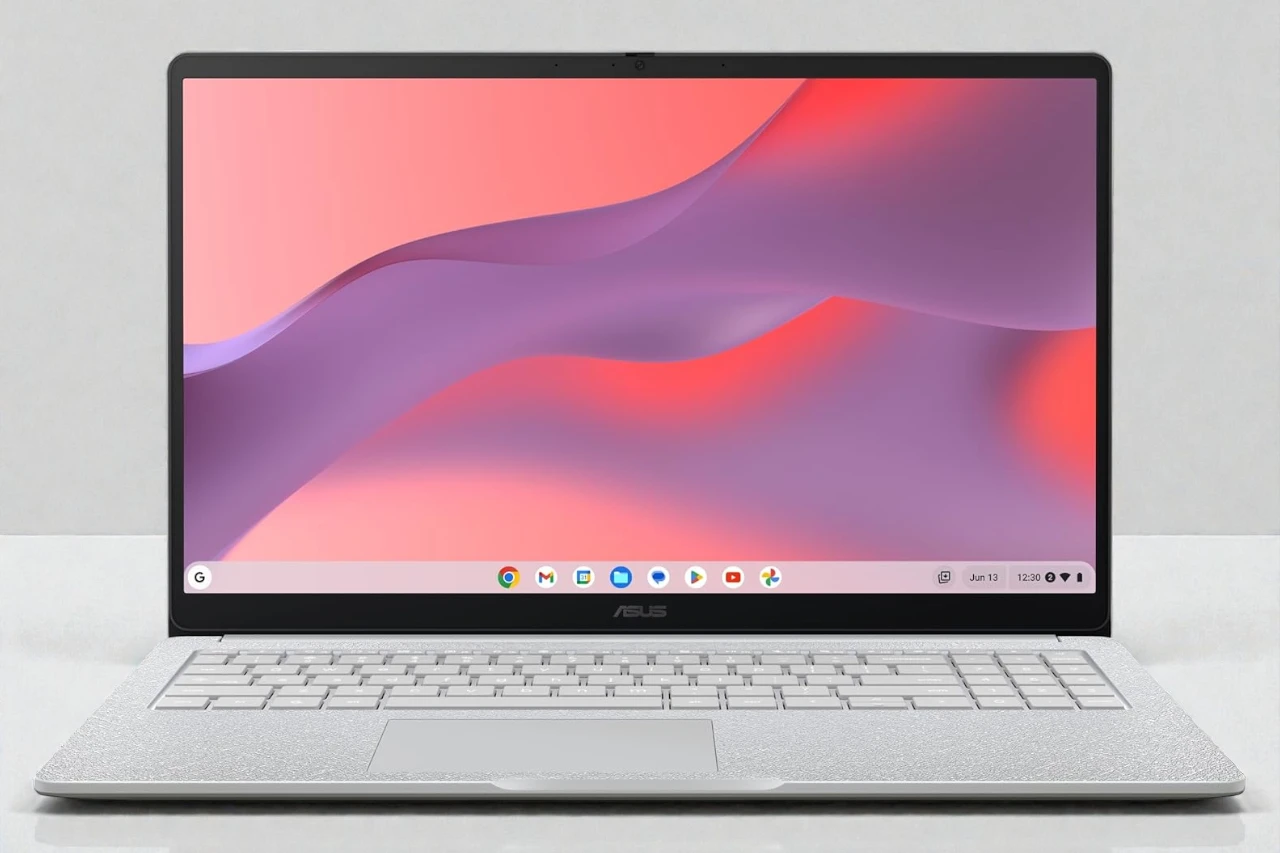
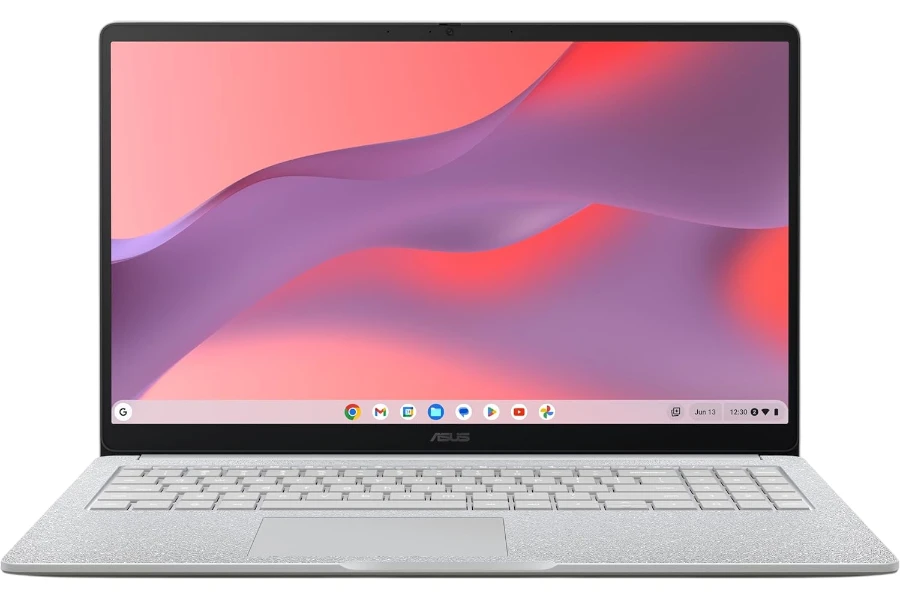
ASUS Chromebook CX15 Review: Strong Web Work, Real Limits
A fast, stable 15.6″ Chromebook for ChromeOS productivity and desk setups, but not a true replacement for heavy local Windows workloads.
- Best for: web apps, Docs/Sheets, Asana, and multi-monitor productivity.
- Highlights: 15.6″ FHD anti-glare display, 8GB RAM, Wi-Fi 6, lightweight build.
- Trade-offs: Celeron N4500 and ChromeOS app limits for heavy local work.
The ASUS Chromebook CX15 is a budget 15.6-inch Chromebook built for web-first productivity and multi-monitor desk setups, not for “Windows-laptop-style” local power.
In practice, it’s most compelling for people who live in a browser, use Google apps daily, and want a lightweight machine that boots fast and stays stable over long work sessions. It’s also a surprisingly workable option for engineering-adjacent workflows if you’re comfortable using Linux tools where available, web apps (like AutoCAD Web), and/or remote desktop to a stronger computer for Windows-only software.
I tested it because it claims a rare combo at this price: 15.6″ FHD screen + 8GB RAM + 128GB storage + MIL-STD durability + Wi-Fi 6, all in a light chassis. The obvious competitors are other 15-inch Chromebooks (often with 4GB RAM) and low-end Windows laptops that may offer broader app compatibility but tend to feel slower and more maintenance-heavy at the same budget.
Quick Verdict
If your work can live in ChromeOS (plus optional Linux and remote desktop), the CX15 delivers a fast, reliable “daily driver” experience—just don’t expect it to replace a Windows laptop for heavy local apps.
Bottom line: A strong value Chromebook for web work, school, and multi-monitor productivity, with real limits for heavy local workloads.
Best for: Students, office users, and web-first power users who want a big screen and a simple, stable workflow.
Why it works: ChromeOS stays snappy with 8GB RAM, boots quickly, and pairs well with external monitors, web apps, and remote desktop.
Main compromise: The Intel Celeron N4500 is fine for browser workloads, but it’s not built for demanding local compute or Windows-native engineering apps.
Worth it under: $300 (Not worth it above: $350)
Decision lines:
Buy it if:
- You work mostly in Chrome, Google apps, and web tools, and want a bigger 15.6″ display.
- You plan to use external monitors and want stable Wi-Fi for desk productivity.
- You’re open to Linux apps and/or remote desktop for specialized workloads.
Think twice if:
- You need strong local performance for big creative projects or heavy compute.
- You rely on Windows-only apps and want everything to run locally.
Skip it if:
- You must run Windows engineering software locally (not via remote desktop).
- You need a color-accurate display for photo/video work.
Evidence Snapshot
The CX15’s “spec story” is straightforward: a big anti-glare 1080p panel and 8GB RAM make ChromeOS feel responsive, while the Celeron platform defines the ceiling.
- CPU: Intel Celeron N4500
- GPU: Integrated Intel graphics (iGPU)
- RAM / Storage: 8GB RAM / 128GB storage (sold as SSD storage in listings; solid-state behavior in use)
- Display: 15.6″, 1920×1080, anti-glare (non-touch)
- Weight: 3.51 lb
- Battery: 42Wh (real-world longevity depends heavily on brightness, tabs, and video use; felt “all-day” for browser productivity)
- Ports: HDMI for external display + USB ports for accessories (plan on a hub/dock if you run multiple peripherals)
- Webcam / Mic: Webcam included (resolution not specified in the listing)
- Wi-Fi / Bluetooth: Wi-Fi 6 / Bluetooth 5.4
- Price: Around $269.99 for the 8GB/128GB configuration (pricing and bundles can change)
Score breakdown (0-10):
- Performance: 6.8
- Display: 6.4
- Keyboard & trackpad: 7.4
- Battery & portability: 8.2
- Build & ports: 7.2
- Value: 8.6
My Test Setup & Method
This review reflects a web-first “power user” workflow with real multitasking, external displays, and a mix of ChromeOS + Linux + remote access when needed.
- Test duration: About 1 week as a daily carry + desk machine
- Power mode: Default/balanced ChromeOS behavior (no special performance tweaks)
- Typical workload: 15–30 Chrome tabs, Docs/Sheets, Gmail, YouTube, and constant background sync
- Productivity: Asana for task management, heavy email/calendar use, document editing, and frequent screen sharing
- Creator tasks (light): Freehand sketching with a Wacom drawing tablet, plus lightweight design/sketch apps that work well in a ChromeOS workflow
- Engineering workflow (practical reality): Web CAD where possible (e.g., AutoCAD Web), Linux tools where available, and remote desktop to a more powerful machine when a Windows-only tool was required
- Battery test notes: I did not run a lab-style loop test; I evaluated “can I leave the charger behind?” during mixed workdays with Wi-Fi on and moderate brightness
Who This Laptop Is For
This laptop is best for people who want a simple, reliable, big-screen Chromebook experience and are willing to work within ChromeOS strengths.
- Web-first professionals and freelancers who live in Gmail, Docs, Sheets, web dashboards, and tools like Asana—and want a larger display for comfortable daily work.
- Students who want low-maintenance performance, fast boot, automatic updates, and strong compatibility with school platforms.
- Engineering-adjacent users with a modern workflow (web tools + remote desktop + some Linux usage) who need multi-monitor productivity and stable connectivity more than raw local compute.
Who Should Skip This Laptop
You should skip the CX15 if you need a traditional laptop that runs everything locally, especially Windows-first workloads.
- Skip if you need: heavy rendering, serious local CAD/CAE workloads, high-end programming builds, or native Windows app compatibility on-device.
- Skip if you hate: workflow “workarounds” like web versions of tools, remote desktop, or learning Linux setup basics.
- Skip if you expect: a premium screen, strong speakers, lots of high-speed ports, or hardware upgrade paths (this class is typically “buy it as-is”).
Performance in Real Use
For ChromeOS workloads, the CX15 feels quick and dependable, but the Celeron N4500 becomes the bottleneck when you push into heavier multitasking or anything compute-heavy.
Day-to-Day Speed & Multitasking
With typical office and browser use, the CX15 stays responsive and gives you that “Chromebook snap” that cheap Windows laptops often miss.
I ran a normal workday load—lots of tabs, Docs/Sheets, Gmail, YouTube in the background, and frequent app switching—and it rarely felt sluggish. App launches are quick (in Chromebook terms), and the system doesn’t get bogged down by background maintenance the way budget Windows machines often do.
Limitation: You can still hit a ceiling if you stack too many heavy web apps at once (big Sheets files + multiple media streams + lots of extensions). It’s not a problem every day, but it’s there.
Heavy Tasks
The CX15 can support technical workflows, but only when you’re realistic about where the heavy work happens.
For engineering tasks, my best results came from combining tools: Linux where it made sense, web CAD when available, and remote desktop when I needed true workstation-class software behavior. That’s how it becomes a “stout” engineering companion—not by pretending it’s a Windows workstation in disguise.
Limitation: If your plan is to run demanding engineering software locally and natively, this is the wrong class of machine. The CPU is built for efficiency, not sustained heavy compute.
Thermals, Fan Noise & Throttling
For everyday productivity, the CX15 stays calm, and I didn’t run into “heat anxiety” during normal desk work.
Heat buildup is most noticeable when you force sustained load (long video sessions, lots of simultaneous heavy tabs, or Linux tasks that actually stress the CPU). For typical ChromeOS use, it stays in the “noticeable but not concerning” category.
Limitation: This is not the kind of chassis meant for sustained performance loads—so even when it stays usable, it’s not designed to hold high performance indefinitely.
Display, Keyboard & Trackpad
The display is okay for productivity and reading, but it’s not the reason to buy this laptop—external monitors are where it really shines.
Display Quality
Indoors, the 15.6″ FHD anti-glare panel is comfortable for documents, web apps, and long sessions of reading and editing. Anti-glare helps reduce reflections, which matters more than people expect on a budget machine.
Outdoors or in harsh lighting, it’s usable, but this is not a premium bright panel, and you feel that if you’re trying to do detailed work in direct light.
Limitation: If you care about color accuracy for design/print/photo work, treat this display as “functional,” not “creator-grade.” My own experience improved noticeably when I moved my serious work to a proper monitor setup.
Keyboard Comfort & Trackpad Precision
The keyboard is one of the quiet strengths here, especially because you get a physical numeric keypad on a budget Chromebook—great for spreadsheets, project numbers, and many engineering/admin workflows.
Typing comfort is solid for long sessions, and I didn’t feel like I had to “fight” the deck. The trackpad is accurate enough for daily use, and ChromeOS generally handles palm rejection well.
Limitation: Don’t expect luxury trackpad feel. It works, it’s consistent, but it won’t mimic premium glass trackpads.
Battery Life & Charging
Battery life is strong for a 15.6-inch device in this price tier, and it’s one of the reasons the CX15 feels easy to live with.
In real workdays (web apps, docs, task management, and general browsing), I consistently treated it like an “all-day” Chromebook—meaning I could leave the charger behind and stay productive without constantly managing power.
Sleep/standby behavior also felt dependable in the sense that I wasn’t constantly surprised by a dead laptop after short breaks.
Limitation: I did not run a controlled rundown test, and battery life can drop quickly with high brightness, heavy video use, or unusually tab-heavy sessions.
Charging speed wasn’t a standout feature for me either way; this category is more about endurance and convenience than rapid charging.
Build Quality, Ports & Daily Carry
The CX15 feels built for practical daily use—lightweight, durable enough for travel, and simple to toss into a bag without babying it.
The chassis is rated to meet MIL-STD 810H in the product listing, and while that doesn’t make it indestructible, it does match the general “this is meant to be carried” feel. At 3.51 lb, it’s notably easy to take everywhere compared to many 15-inch laptops.
For ports, you get what you’d expect at this level: enough for basic accessories and external display use, but not enough to avoid a hub if you run multiple devices (especially in multi-monitor + peripherals setups).
Limitation: If your desk setup includes lots of wired accessories (storage, audio interfaces, multiple displays, wired networking), plan on a dock or USB hub as part of the ownership experience.
Webcam, Speakers & Connectivity
Connectivity is one of the CX15’s strongest real-world traits, and it supports the “desk productivity” role well.
Wi-Fi 6 felt fast and stable in my use, and I didn’t have recurring connection issues. Bluetooth support is modern (5.4 listed), and pairing typical accessories was straightforward.
The webcam is fine for calls and daily meetings, but don’t expect sharp, studio-like quality—this is a practical, baseline camera. Speakers are similarly “good enough” for casual video and calls, but not a highlight.
Limitation: If you do frequent professional video calls and care about mic/cam quality, you’ll still get better results from an external webcam/headset.
Pros & Cons
Overall, the CX15 is a high-value Chromebook when you lean into ChromeOS strengths, but it demands honesty about what it can’t replace.
Pros:
- Snappy ChromeOS experience with 8GB RAM: Feels responsive for real multitasking in web apps and daily productivity.
- Great for multi-monitor productivity workflows: Works especially well when paired with external displays for serious desk use.
- Lightweight for a 15.6-inch laptop: Easy to carry daily without feeling like you’re hauling a traditional 15-inch machine.
- Numeric keypad is genuinely useful: A practical win for spreadsheets, admin work, and many engineering-style tasks.
- Strong value at budget pricing: The overall package makes sense when you prioritize stability and simplicity over raw power.
Cons:
- Celeron N4500 limits heavy local work: Power users pushing Linux workloads, heavy web apps, or sustained compute will feel the ceiling.
- Not a Windows replacement (workflow changes required): Windows-only apps typically require remote desktop or alternatives, which adds setup time.
- Display is functional, not creator-grade: Fine for documents and browsing; less satisfying for color-sensitive or detail-critical work.
- Port selection is “basic”: Multi-accessory desks will want a hub/dock to avoid constant plugging/unplugging.
Comparison to Alternatives
The CX15 competes well in its lane, but there are clear reasons to choose something else depending on your priorities.
- Acer Chromebook Plus 515 (or similar “Chromebook Plus” models): Better for heavier multitasking and longer-term headroom, worse for strict budget value.
- Lenovo IdeaPad Flex 3 Chromebook (2-in-1): Better if you want tablet mode and flexibility, worse if you prefer a larger 15.6-inch screen and numeric keypad.
- HP Chromebook 15 (comparable configs): Similar use case; choose based on pricing, keyboard feel, and port layout differences.
- Budget Windows laptop (Ryzen 3 / Core i3 class): Better for native Windows software compatibility, worse if you want the low-maintenance stability and “always ready” feel of ChromeOS.
FAQ
Is it good for students?
Yes, especially for students who mainly use browser tools, Google apps, and school portals. It’s low-maintenance and boots fast, which matters more than raw power for most schoolwork.
Can it handle multitasking with many Chrome tabs?
Within reason, yes. 8GB RAM helps a lot. You’ll still want to be mindful if you stack many heavy tabs (streaming, web apps, big documents) all at once.
Does it get loud or hot under load?
For everyday work, it stays pretty calm. Under sustained stress (heavy web workloads or Linux tasks that truly load the CPU), you can feel more heat and the system won’t behave like a performance laptop.
What battery life should I expect in real use?
Think “comfortably gets through a workday” for typical browsing and office work, assuming moderate brightness and normal tab loads. If you push video constantly or run heavy workloads, expect less.
Is the display good enough for photo/video work?
It’s fine for casual editing and general viewing, but it’s not ideal for color-critical work. If that’s your job, plan to use a better external monitor.
Is it upgradable (RAM/SSD)?
Typically, Chromebooks in this class are not meaningfully upgradable. Buy the RAM and storage you need up front—8GB is the configuration I’d stick with for multitasking.
Final Verdict – Should You Buy It?
The CX15 is a smart buy when you want a stable, web-first laptop with a big screen and you’re willing to work within ChromeOS realities.
Score: 7.6 / 10
Best for: Web-first productivity, students, and multi-monitor desk workflows (plus Linux/remote desktop users).
Main compromise: Limited headroom for heavy local workloads and Windows-native software expectations.
Buy it if price is: under $300
| Preview | Product | Price | |
|---|---|---|---|

|
ASUS Chromebook CX15 Laptop, 15.6″ FHD Anti-Glare Display, Intel Celeron N4500 Processor, 128GB… | $173.69 | View on Amazon |