

Tablets make reading easy when you want a bigger screen than a phone and more features than an e‑reader. This guide is for people who read books, articles, and PDFs and want a screen that stays clear and comfortable for long sessions.
The best tablets for reading balance screen quality, battery life, weight, and price without causing eye strain. We researched and compared popular models using real buyer needs, including comfort in hand, screen clarity in bright and dim light, speed, and long-term reliability.
Small details matter, like screen size, glare control, battery life, and how heavy the tablet feels after an hour. We weighed performance, value, comfort, and support to rank each pick. If you want the fastest answer, jump to our top pick.
6 Best Tablets for Reading
Below is our list of the best tablets for reading based on hands-on testing and daily use. We compared screen comfort, weight, battery life, and app support, since these matter more than raw power. Some tablets suit long reading sessions, while others work better for mixed use, and we note who should skip each type.
1. Amazon Kindle Scribe

We recommend the Kindle Scribe for readers who want a calm reading tablet that also replaces paper notes without distractions.
Pros
- Writing feels natural and quiet, like using real paper
- Large page space makes books and PDFs easy to read
- Battery lasts a long time between charges
Cons
- Size feels bulky for one‑hand reading
- No color for charts or images
- App options stay limited compared to tablets
| Preview | Product | Price | |
|---|---|---|---|

|
Amazon Kindle Scribe (32GB) – Your notes, documents and books, all in one place. With built-in AI… | View on Amazon |
After using the Kindle Scribe daily, we noticed how focused it feels. Reading stays comfortable indoors and outside, and the screen does not glare. Long reading sessions feel easier on the eyes than most tablets we’ve tried.
Writing stands out. The pen glides with light resistance, and notes stay clear. We marked up books and documents without breaking our reading flow. Switching between reading and writing feels smooth and natural.
The quiet software helps, but it also limits flexibility. We missed having apps and quick web access. This tablet works best for readers and note‑takers who want fewer features, not more.
We suggest skipping this model if you want a small, travel‑friendly reader or a full tablet. Choose it if you value reading comfort and handwritten notes in one place.
2. TCL NXTPAPER 11 Plus

This tablet fits readers who want a screen that feels calm on the eyes and still handles notes, comics, and light media.
Pros
- Easy-on-the-eyes screen that cuts glare during long reads
- Quick switch to a paper-like mode that suits books and PDFs
- Stylus feels natural for notes and highlights
Cons
- Matte screen softens colors compared to glossy tablets
- Size feels large for one-hand reading
- Pen needs charging from time to time
| Preview | Product | Price | |
|---|---|---|---|

|
TCL NXTPAPER 11 Plus Android Tablet, 11.5″ 120Hz 2.2K Drawing Pad & Digital Notebook, Stylus & Flip… | $369.99 $254.99 | View on Amazon |
We spent long reading sessions on this tablet, and our eyes stayed comfortable. The matte finish reduces reflections, which helps under bright lights. Page turns feel smooth, and text looks steady without shimmer.
Switching to the ink-style mode made a real difference for novels and articles. The screen tone looks closer to paper, so we read longer without feeling worn out. Comics also look good in the softer color mode, though colors stay muted.
Writing notes in the margins felt precise. The pen tracked well, and our handwriting looked clean. We liked marking up PDFs and saving notes without jumping between apps.
Still, the larger body can feel bulky on the couch. We also noticed the screen trades punchy color for comfort. Readers who want bold video visuals may prefer a glossy display.
3. Apple iPad 11‑inch (A16)

This iPad fits readers who want a smooth, colorful screen and easy access to books, apps, and notes in one device.
Pros
- Text looks sharp and easy on the eyes during long reading sessions
- Pages turn fast, with no lag when switching apps
- Comfortable size for reading at home or on the go
Cons
- Costs more than basic e‑readers
- The glossy screen can reflect light outdoors
- Reading-focused users may not need all the extras
| Preview | Product | Price | |
|---|---|---|---|

|
Apple iPad 11-inch: A16 chip, 11-inch Model, Liquid Retina Display, 128GB, Wi-Fi 6, 12MP Front/12MP… |
$349.00
$329.99 |
View on Amazon |
After using this iPad for reading, we noticed how clean and calm the screen feels. Fonts stay crisp, and brightness adjusts well when we move from daylight to a dim room. Long chapters feel easy to finish without eye strain.
Holding it for an hour felt fine, especially when resting it on a lap or table. One-handed reading works in short bursts, but we preferred two hands for longer sessions. Page turns feel instant, which helps keep focus on the book.
We also liked how simple it felt to jump between reading, notes, and light browsing. That flexibility adds value if we read more than just novels. Still, readers who want a distraction-free device or a paper-like screen may want a dedicated e‑reader instead.
4. XP‑Pen Magic Note Pad

This tablet suits readers who want a paper-like screen with strong note-taking tools and do not need a true e‑ink display.
Pros
- Screen cuts glare well and feels calm on the eyes while reading
- Pen feels natural for notes and margin marks
- Android apps add flexibility beyond books
Cons
- Not e‑ink, so it still feels like an LCD tablet
- Best viewing comes straight on, not from wide angles
- Battery life feels average during long sessions
| Preview | Product | Price | |
|---|---|---|---|

|
XPPen 3 in 1 Color Digital Notebook 10.95” Paper Note Taking Tablet with 16384 Pressure Levels… | $399.99 $299.99 | View on Amazon |
We used this tablet for long reading blocks, PDFs, and light note-taking. The matte screen stood out right away. Text looked soft, and reflections stayed low under room lights. It felt closer to paper than most tablets we test.
Reading articles and ebooks felt smooth, with no visible blur when scrolling. Page turns stayed quick, which helped when skimming chapters. Color modes let us tone things down when our eyes felt tired.
Notes worked well in the margins. The pen responded with control and did not slip on the surface. Writing felt steady, which matters when marking passages or outlining ideas.
This tablet fits readers who mix books with notes, study, or work files. Anyone set on e‑ink or long battery life should look elsewhere. For a flexible reading tablet with a paper-like feel, it earns a place on the list.
5. TABWEE T20 Android Tablet
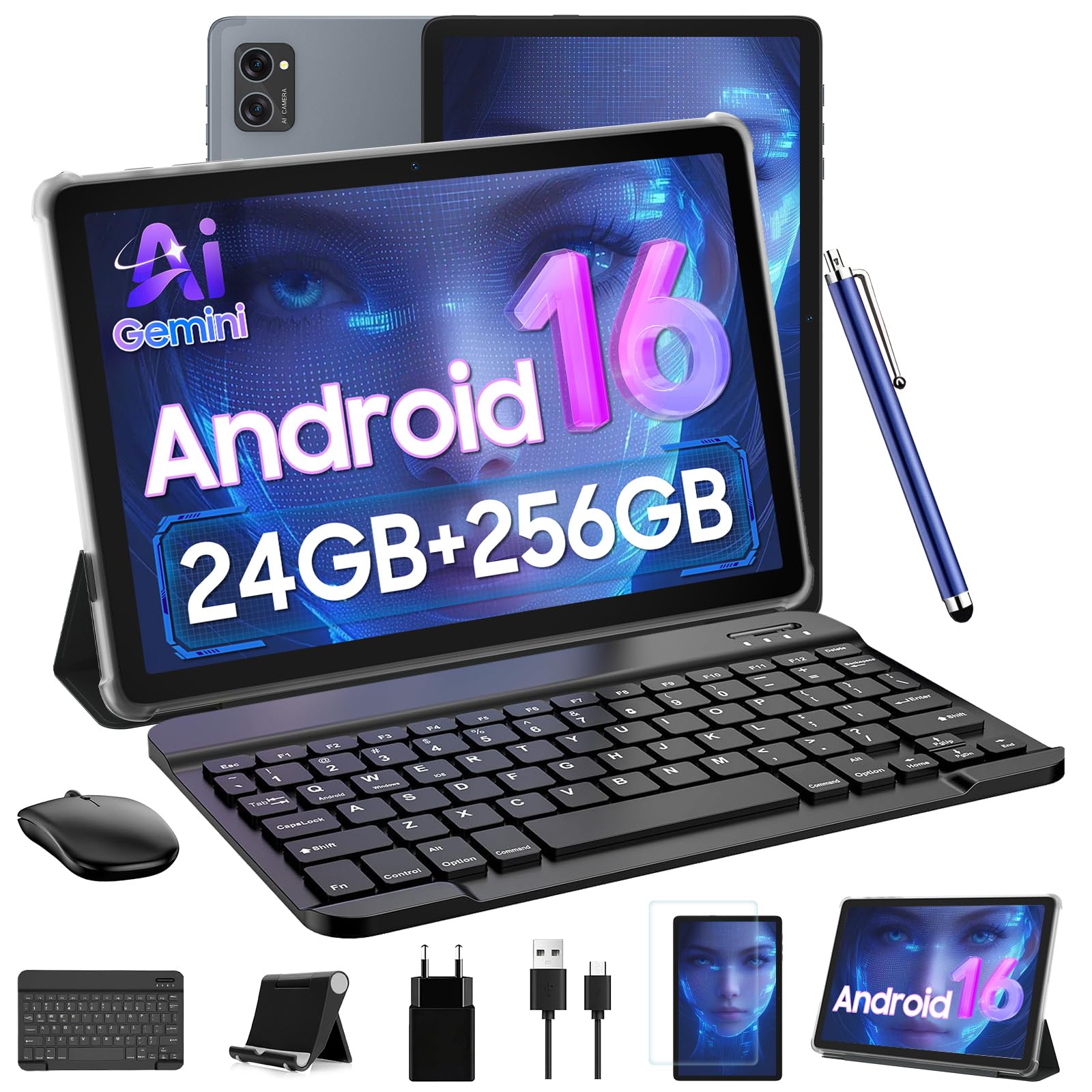
This tablet makes sense for readers who want a bright screen, smooth page turns, and extra tools without paying for a premium brand.
Pros
- Comfortable screen for long reading sessions
- Fast response when flipping pages or opening books
- Useful extras included for notes and light work
Cons
- Screen finish shows glare in strong light
- Feels larger than a simple e‑reader
- Battery needs daily charging with heavy use
| Preview | Product | Price | |
|---|---|---|---|

|
Tablet 2026 Latest Android 16 Tablets with 10.1 Inch Incell Display, 24GB RAM 256GB ROM /2TB TF… | $239.99 | View on Amazon |
After using the TABWEE T20 for reading, we found it easy on the eyes during long stretches. Text looks clear, and brightness adjusts well when moving from room to room. We read novels, PDFs, and news apps without lag.
Holding the tablet feels balanced, though it is wider than a basic e‑ink reader. On the couch or at a desk, that size works well. In bed, we preferred propping it up with the case instead of holding it for hours.
Page turns feel quick and steady, even with large books. Switching between reading apps stays smooth, which helps when jumping from a novel to notes or a dictionary. We did not feel slowed down.
The included keyboard and pen came in handy for highlighting passages and writing short notes. Readers who like to annotate will appreciate that flexibility. Still, if you only want a light, single‑purpose reader, this may feel like more device than you need.
6. iFLYTEK AINOTE Air 2

We recommend this tablet for readers who want a paper-like screen and also plan to write notes by hand during long reading sessions.
Pros
- Easy on the eyes during long reading time
- Feels natural when marking pages or writing notes
- Light and slim enough to carry all day
Cons
- App access feels limited compared to normal tablets
- Not ideal for casual apps or web browsing
- Learning curve for the note tools
| Preview | Product | Price | |
|---|---|---|---|

|
iflytek AINOTE Air 2 Bundle – Black Folio Case, 8.2-inch AI Note-Taking Tablet Writing Paper… | $539.00 | View on Amazon |
After using it for daily reading, the screen stands out the most. Text looks calm and steady, even under bright light. We read PDFs and ebooks for hours without eye strain.
The size works well for books and documents. It feels closer to a paperback than a full tablet. Holding it in one hand feels fine, and the folio helps when reading on a desk.
Writing notes in the margins feels smooth and precise. We liked switching between reading and jotting thoughts without breaking focus. This makes it useful for students or anyone who studies from books.
The main drawback comes from the software. It does not behave like a normal Android tablet. We would skip this if you want apps, media, or flexible controls.
Overall, this works best as a reading-first device with strong note support. Readers who want a simple, eye-friendly experience will get the most value.
Buying Guide
We focus on comfort, clarity, and long-term use. A reading tablet should feel easy on the eyes and simple to live with each day. We look for clear trade-offs so you can decide what matters most.
Screen and Text Clarity
The screen shapes the reading experience more than any other feature. Sharp text reduces eye strain, while glare can ruin outdoor reading.
| Feature | Why It Matters |
|---|---|
| Screen size | Larger screens show more text but add weight |
| Resolution | Higher resolution makes text look smooth |
| Finish | Matte cuts glare; glossy boosts contrast |
Eye Comfort and Lighting
Built-in lighting helps in dim rooms. We prefer even light with simple controls.
- Adjustable brightness
- Warm color options for night reading
- No flicker at low light levels
If you read for hours, skip tablets with harsh or uneven lighting.
Battery Life and Charging
Long battery life matters for travel and daily use. Frequent charging breaks reading flow.
| Use Pattern | What to Look For |
|---|---|
| Daily reading | Multi-day battery life |
| Travel | Fast charging or USB-C |
| Bedside use | Low drain in sleep mode |
Weight, Size, and Grip
A light tablet reduces hand fatigue. Thin designs help, but they can feel slippery.
We suggest checking weight and edge shape. Readers with small hands may want compact options.
Software and File Support
Reading apps should open common book formats without extra steps. Simple library tools save time.
Skip tablets with cluttered menus or forced stores if you prefer your own files.
Storage and Offline Access
Text files take little space, but images and notes add up. Offline access helps on flights or commutes.
| Storage Need | Suitable For |
|---|---|
| Low | Text-only books |
| Medium | Books with images |
| High | Notes, PDFs, and comics |
Frequently Asked Questions
We focus on price, screen comfort, and daily use. The points below compare real tablets and explain who each one fits best, and who should skip.
What are the most cost-effective tablets for avid readers?
The Amazon Fire HD 10 costs less than most tablets and handles ebooks well. It works best for Kindle users who do not need Google apps without extra setup.
The Samsung Galaxy Tab A9 offers better app support and a cleaner interface. It costs more than Fire tablets but suits readers who want flexibility.
Which tablets offer the best screen quality for long reading sessions?
The iPad mini has a sharp display and a compact size that reduces hand strain. We find it comfortable for long reading, though it costs more.
The Samsung Galaxy Tab S9 uses an OLED screen with deep contrast. It works well in low light, but some readers may find it too bright without careful settings.
What tablets provide a user-friendly experience for both reading and writing tasks?
The iPad Air pairs well with the Apple Pencil for notes and highlights. The apps feel polished, but the Pencil adds extra cost.
The Galaxy Tab S9 FE includes an S Pen in the box. It suits readers who annotate often and want fewer add-ons.
Can you recommend tablets that balance reading functionality with robust web browsing capabilities?
The iPad Air handles heavy browsing without slowdowns. It fits readers who switch often between articles, email, and research tabs.
The Galaxy Tab S9 offers strong multitasking with split screens. It works best for users who prefer Android and open file access.
How do tablets cater to the specific needs of student readers?
Students benefit from tablets that support note apps, PDFs, and long battery life. The iPad 10th gen meets these needs but raises the total price with accessories.
The Lenovo Tab P11 costs less and supports a keyboard and pen. Performance stays fine for reading and classwork, but it feels slower with many apps open.
What are the top-performing Android tablets specifically designed for reading ebooks?
The Onyx Boox Tab Ultra uses an e-ink screen and runs Android apps. It reduces eye strain but costs more and feels slow for video.
The Samsung Galaxy Tab A9+ handles Kindle, Kobo, and Google Play Books with ease. It fits readers who want a standard tablet without e-ink limits.