

Choosing the right desktop computer configuration means matching your hardware to how you actually use your computer. The best desktop configuration in 2026 includes a modern processor from Intel, AMD, or Apple, at least 16GB of RAM for most users, and either SSD storage or a combination of SSD and hard drive based on your storage needs and budget. Your specific needs will determine whether you need a powerful graphics card, extra cooling, or room for future upgrades.
Desktop computers offer better value and more power than laptops for the same price. The best desktop computers of 2026 come in three main types: all-in-ones that combine the computer and screen, compact mini PCs that save desk space, and traditional towers that are easy to upgrade. Each type works better for different situations and budgets.
This guide will help you understand which components matter most for your work or hobbies. You’ll learn how to pick the right processor, how much RAM you really need, and which type of desktop fits your space and upgrade plans.
Key Takeaways
- Match your desktop configuration to your specific use case, whether that’s gaming, video editing, office work, or running AI software
- Choose between all-in-one, mini PC, or tower form factors based on your desk space and future upgrade needs
- Invest in quality core components like processor, RAM, and storage while planning for cooling and peripheral compatibility
Understanding the Best Desktop Computer Configuration
![How to Pick the Right PC Parts in 2025! 👀 [Part Selection: Explained]](https://www.featurelens.com/wp-content/cache/flying-press/f1be346dd0f8815410d20e1588bfa01f.jpg)
A desktop computer’s effectiveness depends on selecting the right components that work together efficiently. The processor, memory, storage, and graphics card each play distinct roles in determining how well your system handles daily tasks and specialized workloads.
Core Components and Roles
The processor acts as your computer’s brain and determines how fast you can complete tasks. Modern processors from Intel and AMD come with multiple cores that handle different jobs at the same time. Your desktop PC needs at least 8GB of RAM for basic use, but 16GB or 32GB works better for multitasking or creative work.
Storage comes in two main types. Solid-state drives (SSDs) load programs and files much faster than traditional hard drives. A 512GB SSD gives you enough space for your operating system and frequently used programs. You can add a larger hard drive later if you need more storage for photos, videos, or games.
The graphics card matters most for gaming, video editing, and 3D work. Integrated graphics built into your processor work fine for office tasks and web browsing. Dedicated graphics cards from NVIDIA or AMD provide the power you need for demanding visual work.
Your motherboard connects all these parts together. It determines what components you can upgrade later and how many USB ports or other connections you have available.
Balancing Performance and Reliability
Performance benchmarks help you compare different configurations objectively. These tests measure how quickly a system completes real-world tasks like rendering video or loading large files. Desktop computers that score well in performance tests from independent labs show consistent results across different tasks.
Reliability depends on quality components from established manufacturers. Your desktop PC should run quietly and stay cool under normal use. Systems with good airflow and quality power supplies last longer and crash less often.
You don’t always need the fastest processor or most expensive graphics card. A mid-range configuration often provides the best value. The components should match each other’s capabilities so one part doesn’t limit another’s performance.
Matching Configuration to User Needs
Basic office work requires different specs than gaming or video editing. You need a simple configuration with an Intel Core i3 or AMD Ryzen 3 processor, 8GB RAM, and integrated graphics for email, web browsing, and document editing.
Gaming configurations demand more power. Your system should include a current-generation processor, 16GB RAM, and a dedicated graphics card that matches your monitor’s resolution. A 1080p gaming setup needs less GPU power than 4K gaming.
Creative professionals working with photo editing, video production, or 3D modeling need the most robust configurations. These tasks benefit from processors with 8 or more cores, 32GB RAM, and professional-grade graphics cards. Fast SSD storage speeds up file access when working with large project files.
Tower desktops give you the most flexibility to upgrade components later. Mini PCs work well for basic tasks in tight spaces. All-in-one models combine your computer and monitor but limit your upgrade options.
Key Hardware Choices for 2026
Current desktop computers balance raw performance with efficiency, requiring careful selection of processors, memory, storage, and graphics to match your workload and budget. Modern components now offer meaningful improvements in speed, capacity, and integrated AI capabilities compared to previous generations.
Processor Selection and Modern Options
Your processor choice determines system responsiveness and multitasking capability. The Intel Core Ultra series brings neural processing units directly into desktop chips, enabling local AI tasks without cloud dependence. These chips excel at productivity workloads and light content creation.
For gaming-focused builds, the Intel Core i5-14400F delivers strong performance at a reasonable price point. It handles modern games without bottlenecking mid-range graphics cards. The AMD Ryzen 7 8700G stands out with powerful integrated graphics, making it ideal if you want gaming capability without buying a separate graphics card immediately.
Apple’s approach differs significantly. The iMac M4 uses Apple’s custom silicon with integrated CPU, GPU, and Neural Engine on a single chip. This design provides excellent performance per watt and enables Apple Intelligence features built directly into the hardware. The unified architecture means better optimization for macOS tasks.
Memory Requirements and Trends
DDR5 RAM has become the standard for new desktop builds in 2026. It offers higher bandwidth and improved power efficiency compared to DDR4. Most users find 16GB adequate for basic tasks, while 32GB suits gaming and moderate content creation.
64GB RAM makes sense if you work with large datasets, run multiple virtual machines, or edit high-resolution video projects. Memory prices have dropped enough that upgrading beyond basic configurations costs less than in previous years.
Gaming systems typically run well with 32GB, though some users still choose 16GB to allocate more budget toward graphics cards. Professional workstations benefit most from maximum memory capacity.
Storage Technologies and Capacities
NVMe SSDs deliver the fastest storage performance available for desktop computers. A 1TB SSD provides enough space for your operating system, applications, and a decent game library. This capacity hits the sweet spot between price and usability for most users.
A 512GB SSD works if you primarily use cloud storage or keep a secondary hard drive for media files. However, modern games often require 100GB or more each, making 512GB feel cramped quickly.
Consider these storage tiers:
- 512GB: Budget systems, light users, cloud-dependent workflows
- 1TB: Gaming, general productivity, standard recommendation
- 2TB+: Content creators, large game libraries, professional workstations
PCIe 4.0 drives remain the mainstream choice, offering read speeds around 7,000 MB/s. PCIe 5.0 drives exist but cost significantly more without practical benefits for most tasks.
Graphics Solutions: Integrated vs. Dedicated
Integrated graphics have improved dramatically. The AMD Ryzen 7 8700G includes RDNA 3 graphics that handle 1080p gaming at medium settings in many titles. Intel UHD Graphics in standard Intel chips manages basic display tasks and video playback but struggles with gaming.
The Apple iMac uses integrated graphics within its M4 chip, providing performance comparable to entry-level dedicated cards while consuming less power. This works well for creative applications optimized for Metal API.
Dedicated graphics cards remain essential for serious gaming and 3D work. The NVIDIA RTX 3060 represents a capable mid-range option that handles 1080p gaming at high settings and supports ray tracing. Newer RTX 40-series cards offer better efficiency and performance but at higher prices.
Choose integrated graphics if you:
- Primarily browse web and use office applications
- Watch video content and stream media
- Have budget constraints under $800
- Use a laptop or all-in-one system
Choose dedicated graphics if you:
- Play modern games regularly
- Edit video or 3D content professionally
- Need multiple high-resolution displays
- Run GPU-accelerated applications
For gaming PC builds in 2026, the graphics card often represents the largest single expense in your configuration.
Desktop Computer Types and Form Factors
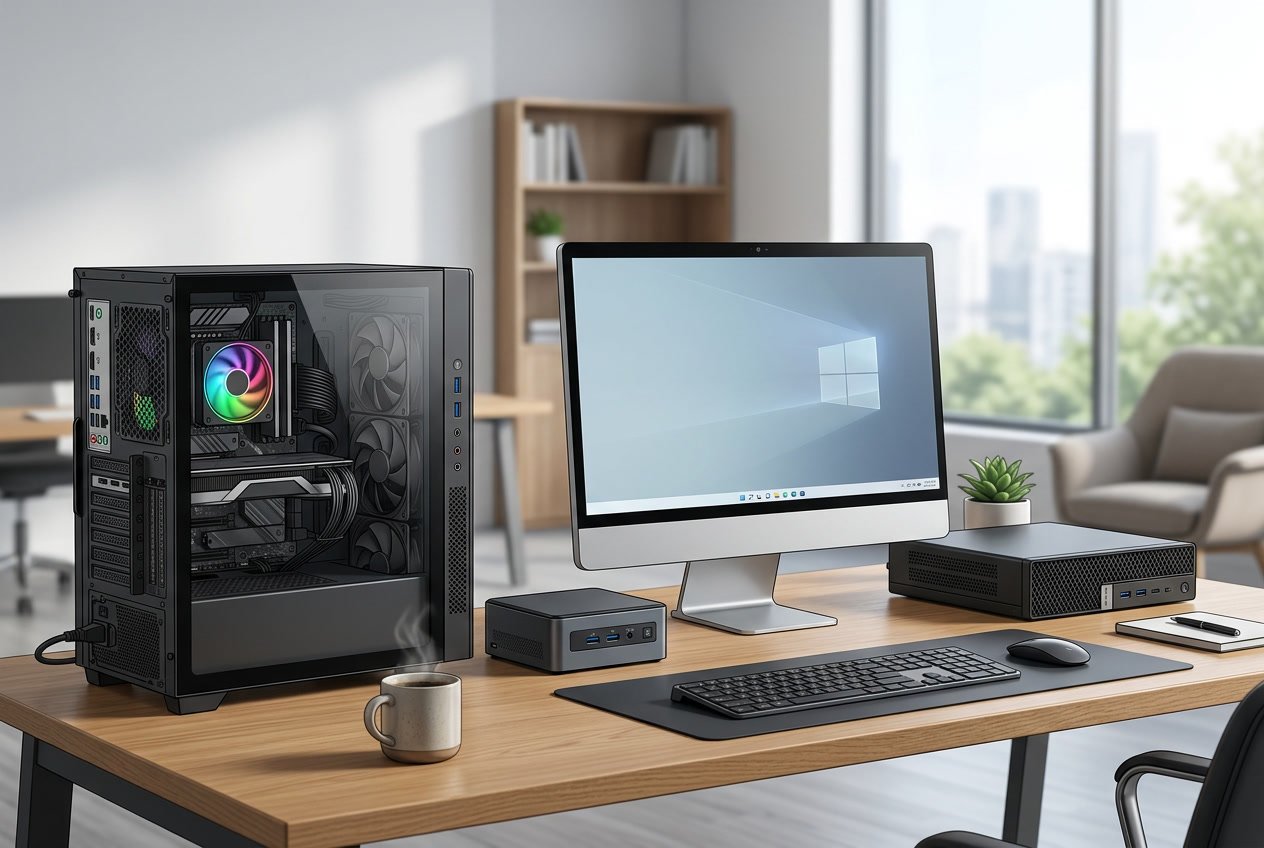
Desktop computers come in three main form factors that each serve different needs and spaces. Tower systems offer the most power and upgrades, all-in-one desktops save space with built-in monitors, and compact PCs deliver surprising performance in tiny packages.
Traditional Towers and Workstations
Tower desktops remain the most popular choice for people who want maximum performance and flexibility. These computers sit upright on or under your desk and connect to a separate monitor, keyboard, and mouse.
Full-size towers give you the most room inside for powerful components. You can easily add more storage drives, upgrade your graphics card, or install additional memory without any special tools. This makes them perfect for gaming desktops where you’ll want to swap parts as technology improves.
Workstation computers are specialized towers built for professional tasks. They use server-grade processors and error-correcting memory for tasks like 3D rendering, video production, and engineering software. These machines cost more but deliver reliability for people who can’t afford system crashes or errors.
Mid-tower cases offer a good balance between size and expandability. They fit standard desktop components but take up less floor space than full towers.
All-in-One Desktops and Their Advantages
An all-in-one desktop combines the computer and monitor into a single unit. The all-in-one PC design eliminates cable clutter and takes up minimal desk space since you only need to set down one device.
The best all-in-one desktop models feature thin profiles with displays ranging from 24 to 27 inches. Apple’s iMac stands out as a premium option with its 4.5K screen and sleek aluminum design. Windows-based all-in-ones from Dell, HP, and Lenovo offer more variety in price and specs.
These systems work well for home offices, creative work, and family computers. You get a complete setup without managing multiple cables or finding space for a separate tower. Most include wireless keyboards and mice to keep your workspace clean.
The main drawback is limited upgrade options. You typically can’t change the processor or graphics card, though some models let you add more RAM or storage through access panels.
Compact and Mini PCs
Mini PC systems pack full computer power into boxes smaller than most hardcover books. These tiny machines measure just 7 to 8 inches on each side but run the same processors and memory as larger desktops.
The Mac mini leads this category with Apple’s M-series chips delivering excellent performance in a 7.7-inch square design. Windows-based options include Intel NUC models and systems from ASUS, Lenovo, and HP. These compact desktop computers easily hide behind monitors or mount on walls.
Mini PCs excel in small apartments, dorm rooms, or offices where desk space is limited. They use less power than towers and run quietly since they don’t need large cooling fans. Many people use them as home theater computers connected to TVs.
Most mini systems let you upgrade the RAM and storage, though you can’t change the processor. They include modern ports like USB-C, HDMI, and WiFi built in. Some models support multiple monitors despite their small size.
Configurations for Specific Use Cases
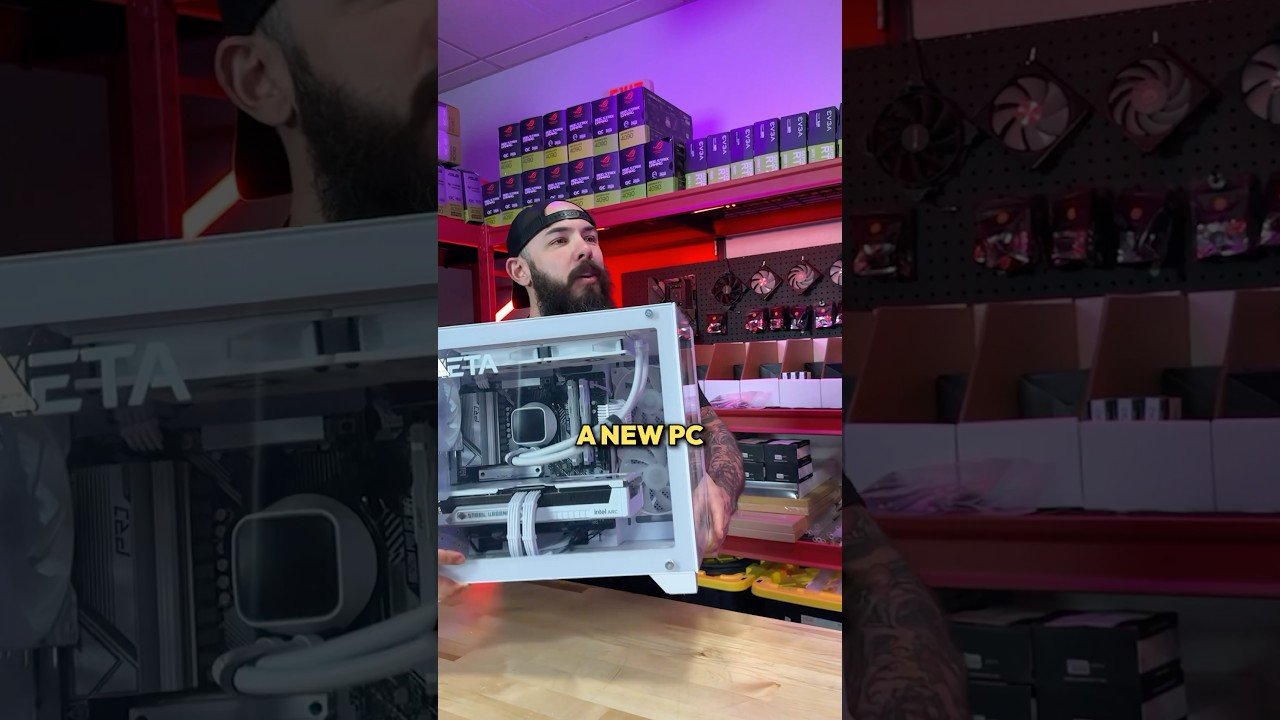
Different tasks require different hardware priorities. A gaming setup needs a powerful graphics card, while data analysis demands maximum processing power and RAM.
Gaming-Focused Setups
Gamers need a strong graphics card above all else. Your GPU handles all the visual processing for games. The NVIDIA RTX 4070 or AMD RX 7800 XT work well for 1440p gaming at high settings.
Pair your graphics card with a capable processor. The Intel Core i5-13600K or AMD Ryzen 5 7600X provide enough power without bottlenecking your GPU. You need 16GB of RAM as a minimum, though 32GB gives you room for future games.
Storage matters for load times. A 1TB NVMe SSD keeps your operating system and games loading fast. The gaming PC builds on PCPartPicker show popular component combinations that work well together.
Pre-built options like the HP Omen 35L come with balanced components. These systems save you assembly time but cost more than building yourself.
Home Office and Productivity Builds
Your home office computer needs reliable performance without gaming-level power. An Intel Core i5 or AMD Ryzen 5 processor handles spreadsheets, video calls, and multitasking easily.
You can use integrated graphics instead of a dedicated card. This saves money and power. Get 16GB of RAM for smooth multitasking between browser tabs, documents, and communication apps.
A 500GB SSD provides enough space for documents and programs. Add a larger hard drive if you store many files locally. Your monitor matters as much as internal components for productivity work.
Key Components:
- Processor: Intel Core i5 or AMD Ryzen 5
- RAM: 16GB
- Storage: 500GB SSD minimum
- Graphics: Integrated graphics
Creative Work and Video Editing
Video editors need powerful processors with many cores. The AMD Ryzen 9 7900X or Intel Core i7-13700K handle 4K video rendering efficiently. More cores mean faster export times.
Your RAM requirements jump significantly for video work. Start with 32GB as a baseline. Upgrade to 64GB if you work with 4K footage or complex effects. Video editing uses far more memory than typical computing tasks.
Graphics cards accelerate rendering in programs like Adobe Premiere and DaVinci Resolve. The NVIDIA RTX 4060 Ti or better speeds up your workflow. Storage needs grow quickly with video files, so plan for 2TB or more of fast SSD space.
Handling Large Datasets and Advanced Tasks
Large datasets require maximum processing cores and memory. Workstations for data analysis benefit from AMD Threadripper or Intel Xeon processors with 16+ cores. These CPUs cost more but process complex calculations much faster.
You need 64GB of RAM minimum for working with large datasets. Many data scientists upgrade to 128GB or more. Your RAM capacity directly affects how much data you can analyze simultaneously.
Fast storage matters when loading datasets. Use NVMe SSDs rated for high endurance. Some configurations benefit from ECC memory, which detects and corrects data errors automatically.
| Component | Minimum Spec | Recommended |
|---|---|---|
| CPU | 16-core | 24+ cores |
| RAM | 64GB | 128GB |
| Storage | 1TB NVMe SSD | 2TB+ NVMe SSD |
Essential Peripherals and Connectivity
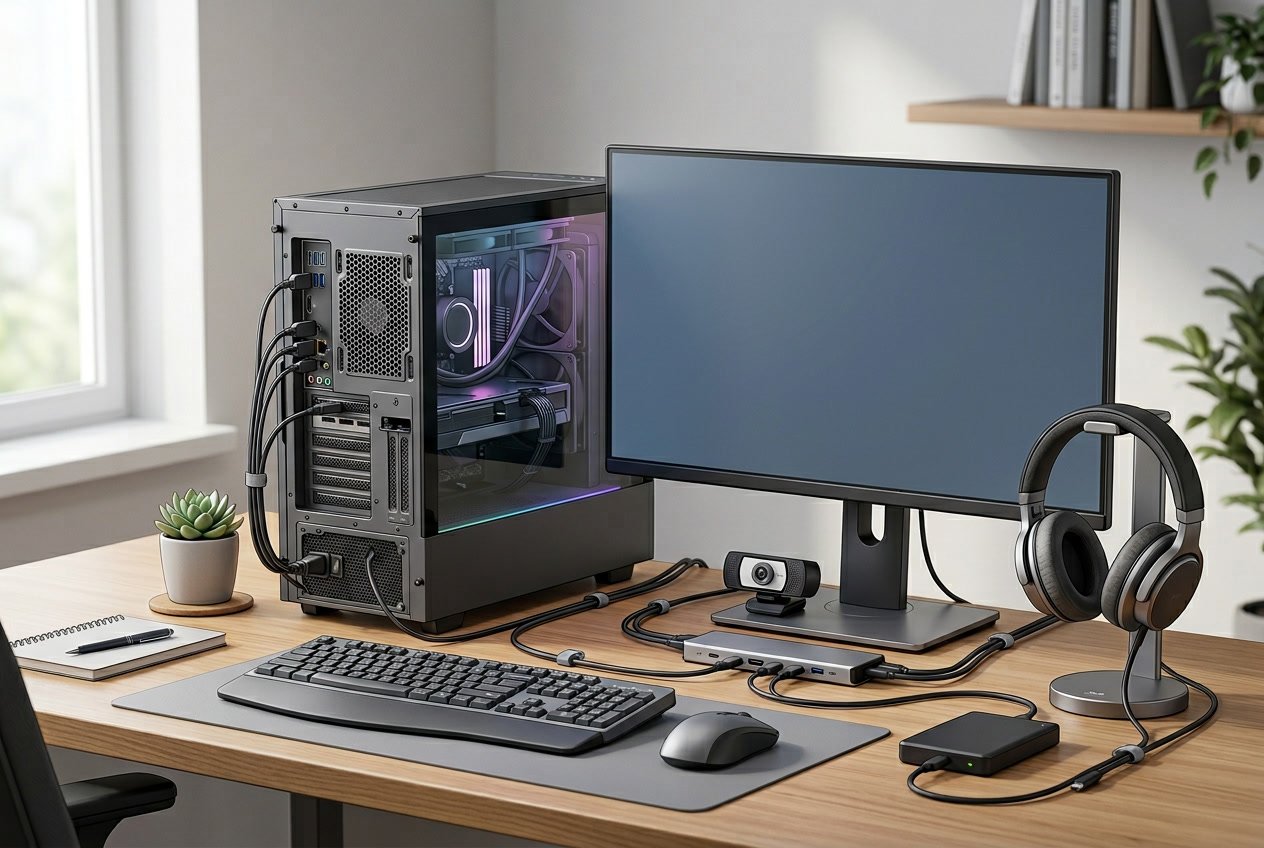
A complete desktop setup requires carefully selected peripherals and proper connectivity options to maximize productivity and compatibility. Display quality, input devices, and modern ports determine how effectively you can use your computer.
Monitors and Display Options
Your monitor serves as the primary interface with your desktop computer. A 24-inch display works well for basic tasks, while 27-inch or larger screens provide more workspace for multitasking. Resolution matters significantly—1080p works for budget setups, but 1440p offers sharper text and images for professional work. If you edit photos or videos, look for IPS panels with at least 99% sRGB color coverage.
Refresh rate affects smoothness. Standard 60Hz displays handle office work fine, but 144Hz or higher reduces eye strain during long sessions and improves gaming performance. Response time should be 5ms or lower to prevent ghosting.
Multiple monitor setups boost productivity by 20-30% for tasks like coding, spreadsheet work, and content creation. You can extend your workspace across two or three displays using your graphics card’s outputs.
Keyboards and Mice for Productivity
Your keyboard and mouse directly impact typing comfort and workflow efficiency. Mechanical keyboards offer tactile feedback and last longer than membrane models, with switches rated for 50-100 million keystrokes. Cherry MX Brown or Red switches work well for both typing and general use.
For those in the Apple ecosystem, the Magic Keyboard provides a slim profile with scissor switches and Bluetooth connectivity. Pairing the Magic Keyboard and Magic Mouse creates a cohesive wireless setup, though you’ll need separate batteries or charging cables.
Ergonomic keyboards with split layouts and wrist rests reduce strain during extended typing sessions. Your mouse should fit your hand size and grip style. Adjustable DPI settings between 800-3200 let you switch between precise work and fast cursor movement. Wireless models eliminate cable clutter but require battery management.
Ports and Modern Connectivity Standards
Modern desktops need diverse connectivity options. USB-C ports deliver power, data transfer up to 40Gbps with Thunderbolt 4, and video output through a single cable. Having at least two USB-C ports on your computer provides flexibility for external drives, docking stations, and charging devices.
Traditional USB-A 3.2 ports remain essential for older peripherals and accessories. Include four to six USB-A ports for keyboards, mice, printers, and external storage.
For displays, HDMI 2.1 supports 4K at 120Hz or 8K at 60Hz, making it ideal for high-refresh monitors and gaming displays. DisplayPort 1.4 or 2.0 handles similar resolutions and works better for multi-monitor configurations with daisy-chaining capabilities.
Ethernet ports provide stable wired internet connections faster than Wi-Fi. Audio jacks for headphones and microphones round out essential connectivity, though many users now prefer USB or Bluetooth audio devices.
Upgradability, Cooling, and Future-Proofing
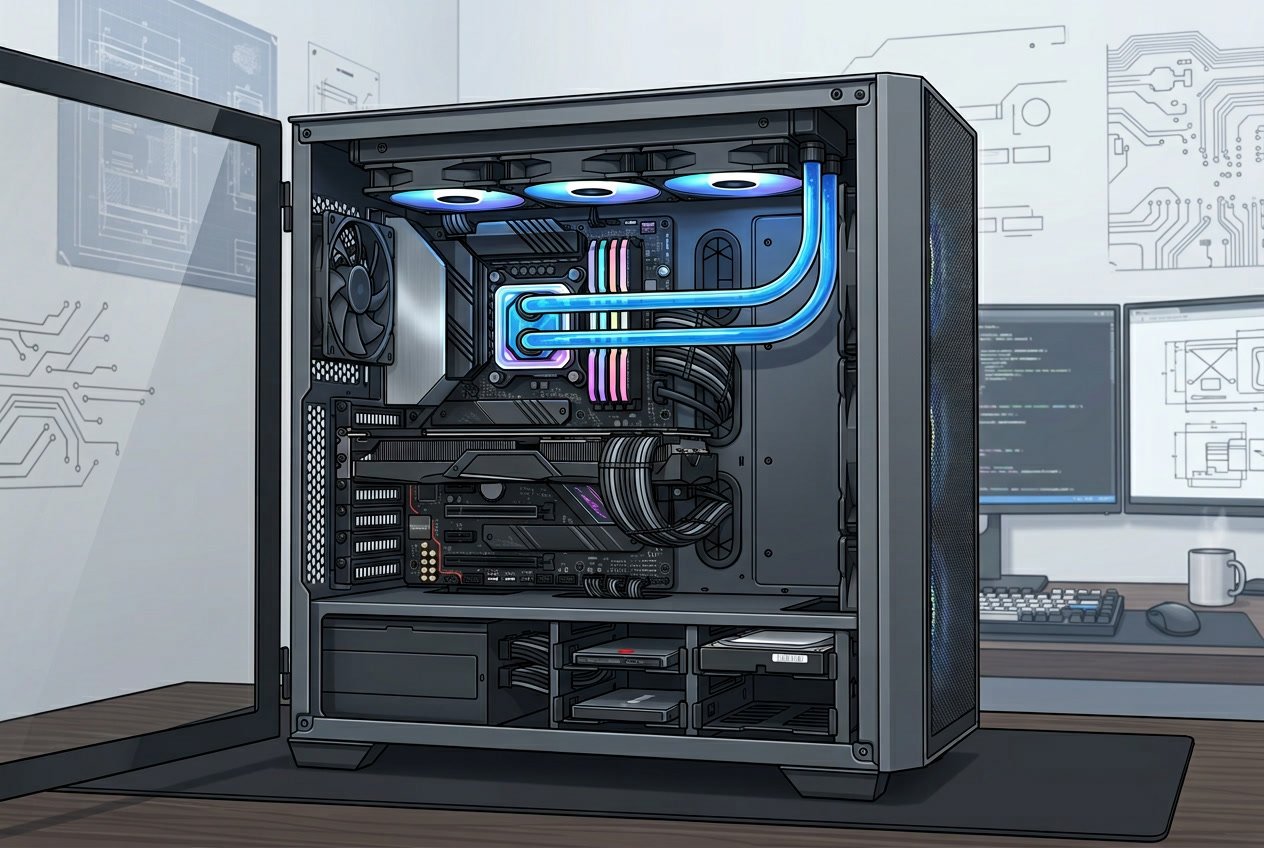
A desktop’s ability to accept new components and maintain stable temperatures directly impacts how long it remains useful. Modern systems with accessible internals and robust cooling handle both current workloads and future upgrades more effectively than locked-down configurations.
RAM and Storage Expansion
Your motherboard determines how much memory and storage you can add later. Most ATX motherboards include four RAM slots, while Micro-ATX boards often have two slots. Check whether your system uses DDR4 or DDR5 memory, as this affects both current capacity and upgrade options.
Storage expansion matters just as much. Look for motherboards with multiple M.2 slots for NVMe SSDs. Systems with at least two M.2 slots let you add fast storage without removing existing drives. Additional SATA ports provide flexibility for traditional hard drives or SATA SSDs.
When evaluating RAM upgrade potential, verify the maximum supported capacity. Many current motherboards support 64GB or 128GB, which exceeds most users’ needs for years. Installing memory in matching pairs enables dual-channel operation for better bandwidth.
GPU and CPU Upgrade Paths
Your motherboard’s socket type locks you into specific processor generations. AMD’s AM5 socket and Intel’s LGA 1700 socket support multiple CPU generations, extending your upgrade runway. Older sockets limit you to discontinued processors that offer minimal performance gains.
PCIe slot configuration affects GPU upgrades. Modern graphics cards use PCIe x16 slots and can draw 300-450 watts. Your power supply must provide adequate wattage and the correct PCIe power connectors. Measure case clearance too, since high-end GPUs often exceed 320mm in length and occupy three expansion slots.
BIOS updates sometimes add support for newer processors on existing motherboards. Check your motherboard manufacturer’s CPU compatibility list before purchasing. Some boards require firmware updates before accepting newer chips.
Cooling Systems and Efficiency
Your cooling setup determines whether components maintain peak performance or throttle under load. Air cooling works well for most builds, with tower coolers handling CPUs up to 125W TDP. All-in-one liquid coolers handle higher-wattage processors and fit better in cases with limited clearance.
Case airflow matters more than individual component coolers. Configure intake fans at the front and bottom, with exhaust fans at the rear and top. This creates positive pressure that reduces dust while moving hot air away from components.
Fan quality affects both temperatures and noise levels. Higher-quality fans move more air at lower RPM, reducing sound output. PWM fans adjust speed based on temperature, running quietly during light tasks and ramping up only when needed.
Longevity and Support Considerations
Platform support varies significantly between manufacturers. Intel typically supports each socket for two to three processor generations. AMD’s AM4 socket lasted from 2017 to 2022, supporting five processor generations and giving users extended upgrade paths.
Component warranty length indicates expected lifespan. Quality power supplies include seven to ten-year warranties. Graphics cards typically carry three-year warranties, while motherboards range from three to five years.
Driver support extends system usefulness beyond hardware lifespan. Major GPU manufacturers provide driver updates for cards five to seven years old. Operating system compatibility also matters, as older components may lose support when you upgrade Windows or switch to Linux.
Community, News, and Ongoing Support
Keeping up with desktop computer trends requires regular access to reliable information sources and connecting with other users who share your interests. Expert guidance and community feedback help you make better decisions about upgrades and troubleshooting.
Staying Updated With Industry Trends
Desktop computing changes quickly as new processors, graphics cards, and software emerge throughout the year. Consumer Reports tests dozens of desktop computers annually to help you understand which models deliver the best performance and value.
Industry publications release updates about hardware releases, price drops, and technology breakthroughs. You should check tech news sites weekly to learn about upcoming components that might affect your purchasing decisions.
AI-powered features now appear in creative and productivity software, making it important to understand how your desktop’s processor handles these workloads. Newer chips from Intel, AMD, and Apple include specific capabilities designed for AI tasks.
Accessing Newsletters and Expert Advice
A weekly newsletter from trusted technology publications keeps you informed about desktop computer developments without requiring constant web browsing. Many tech sites offer free email updates that summarize the most important news and reviews.
When you subscribe to the magazine from established tech reviewers, you gain access to detailed testing data and buying guides. These resources help you compare specifications and understand which features matter most for your needs.
Expert advice often includes detailed benchmarks that measure real-world performance rather than just listing specifications. This information helps you avoid marketing claims and focus on actual capabilities.
Engaging With the Desktop Community
Online forums and discussion boards connect you with experienced desktop users who solve similar problems and share upgrade experiences. These communities provide practical advice about compatibility issues, cooling solutions, and performance optimization.
You can learn from others by commenting on build guides and asking questions about specific components. Community members often share photos of their setups and explain their configuration choices.
Join our community discussions to get feedback on your planned build before making purchases. Other users can spot potential bottlenecks or suggest better component combinations within your budget. Desktop enthusiast groups also organize local meetups where you can see different configurations in person.