

Your laptop is a major investment that you use every day for work, school, or entertainment. Most people keep their laptops for several years, making proper care essential to getting the best value from your purchase. Regular laptop maintenance keeps your device running fast, prevents expensive repairs, and extends its lifespan by years.
Many laptop owners skip basic maintenance tasks until something goes wrong. This creates problems that could have been avoided with simple steps. Your laptop needs regular attention to stay healthy, just like any other tool you rely on daily.
The good news is that laptop maintenance does not require technical expertise or special equipment. Basic laptop care involves simple habits that take only a few minutes but make a huge difference. These practices protect your hardware, improve performance, and keep your data safe from loss or theft.
Key Takeaways
- Keep your battery between 20% and 80% charge to extend its lifespan and delay costly replacements
- Clean vents regularly and remove unused programs to maintain peak performance and prevent overheating
- Enable automatic updates and use strong passwords to protect against security threats and data loss
Keep Your Laptop Clean
Physical cleaning prevents dust buildup that can block airflow and cause overheating, while proper screen and keyboard maintenance keeps your device hygienic and functioning properly.
Screen Cleaning
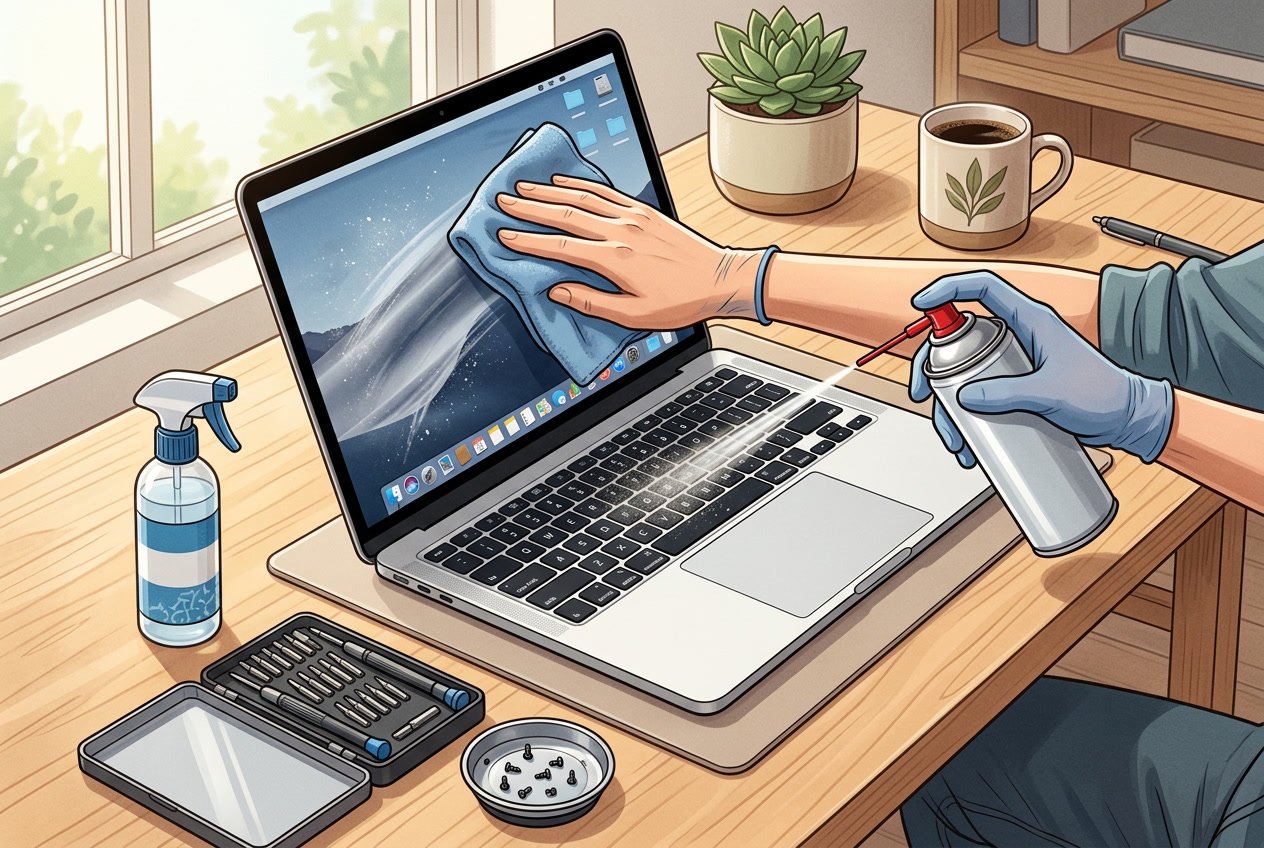
Turn off your laptop and unplug it before you start cleaning the screen. Use a microfiber cloth slightly dampened with distilled water or a dedicated screen cleaner.
Never spray liquid directly onto the screen. Apply it to the cloth instead. Wipe the screen gently in circular motions without pressing too hard, as excessive pressure can damage the display.
Avoid using paper towels, regular cloths, or household cleaners like window spray. These contain chemicals and rough fibers that can scratch the screen or remove its protective coating. Clean your screen once a week if you use your laptop daily, or whenever you notice smudges and fingerprints affecting visibility.
Keyboard and Port Dust Removal
Hold your laptop at a 75-degree angle and use compressed air to blow out debris between the keys. Keep the air can upright and use short bursts rather than continuous spraying. Move systematically across the keyboard from left to right.
For stubborn dirt on key surfaces, dampen a cotton swab with isopropyl alcohol (70% or higher) and gently clean around each key. The alcohol evaporates quickly and won’t damage electronics.
Clean your ports using compressed air or a soft brush. Dust in USB ports, charging ports, and headphone jacks can prevent proper connections. Never insert metal objects or wet tools into ports.
Vent and Fan Maintenance
Blocked vents restrict airflow and force your laptop to work harder, which reduces performance and lifespan. Check your vents monthly for dust accumulation. Regular computer cleaning prevents overheating and maintains hardware durability.
Use compressed air to clean external vents on the sides and bottom of your laptop. Hold the can a few inches away and spray in short bursts. Work in a well-ventilated area since dust will fly out.
For deeper cleaning, you may need to open your laptop case to access internal fans. Only do this if you’re comfortable with basic hardware maintenance. If not, take your laptop to a professional every 6-12 months for internal cleaning to keep your computer running smoothly.
Optimize Battery Health
Lithium-ion batteries lose capacity over time, but proper charging habits and storage practices can slow this decline and help you extend battery life for years.
Battery Charging Best Practices
Keep your laptop battery between 20% and 80% charge when possible. Staying at 100% for extended periods degrades battery health faster than moderate charge levels.
If your laptop stays plugged in most of the time, enable Smart Charging or similar features in your system settings. This limits charging to 80% instead of 100%. Surface laptops offer this in the Surface app, while other manufacturers include it in their battery management software.
Always use your original charger or a manufacturer-approved replacement. Third-party chargers may not regulate voltage properly and can damage your battery over time.
Avoid letting your battery drain to 0% regularly. While modern laptops suspend before complete depletion, frequently running to empty wears down battery capacity. Charge your device before it drops below 20%.
Temperature matters for battery care. Keep your laptop between 50°F and 95°F during use and charging. Heat above 95°F causes permanent damage, so avoid leaving your laptop in hot cars or direct sunlight.
Battery Calibration and Monitoring
Check your battery’s current health by opening Command Prompt and typing powercfg /batteryreport. This creates a report saved to your user folder.
Open the batteryreport.html file and find “Installed batteries.” Compare the Design capacity (original capacity) to Full charge capacity (current maximum). A battery at 90% or above of its design capacity remains healthy.
Run this report every few months to track degradation. If capacity drops below 80%, you may notice shorter battery life during daily use.
Battery calibration involves fully charging, then completely draining your battery. Do this once every three months to help your system accurately report remaining charge. This doesn’t restore lost capacity but improves charge level accuracy.
Safe Storage and Handling
Store unused laptops at 50% charge in cool, dry locations. Batteries left at 0% or 100% for months suffer accelerated degradation.
If storing for over six months, charge the battery back to 50% every few months. This prevents it from sitting at 0% for extended periods.
Watch for physical swelling in your battery compartment. A bulging case or trackpad that no longer sits flush indicates a swollen battery that requires immediate attention. Stop using the device and don’t charge it.
Never puncture or expose swollen batteries to heat. Take them to electronics recycling centers for safe disposal. Regular trash disposal creates fire risks.
If your laptop has a removable battery and you primarily work plugged in, remove the battery during use. This keeps it away from heat generated during intensive tasks.
Manage and Optimize Storage
Regular storage management prevents your laptop from slowing down and running out of space. You can reclaim significant disk space by removing unnecessary files, using built-in optimization tools, and moving data to external locations.
Free Up Space and Delete Unused Files
You should start by identifying what takes up the most room on your laptop. Large files like old videos, duplicate downloads, and forgotten installers often consume gigabytes without serving any purpose.
Delete temporary files that accumulate from system operations and web browsing. These files serve no long-term function and can safely be removed. You can also empty the recycle bin regularly since deleted files continue occupying space until permanently removed.
Uninstall programs you no longer use. Many applications take up several gigabytes and run background processes that slow your system. Check your installed software list every few months and remove anything unnecessary.
Review your downloads folder. This location often contains duplicate files, old installers, and forgotten documents. Sort files by size to quickly spot the largest items that might be candidates for deletion.
Utilize Storage Tools and Features
Windows includes built-in disk cleanup utilities that help you optimize storage automatically. Storage Sense is a particularly useful feature that monitors your hard drive and removes unnecessary files on a schedule.
You can configure Storage Sense to empty trash automatically after 30 or 60 days. This prevents the recycle bin from holding deleted files indefinitely. The tool also identifies temporary files, old downloads, and previous Windows installations that consume space.
Disk cleanup tools scan your system for safe-to-remove items. These include system cache, update files, and error reports. Running these utilities monthly keeps your laptop performing well.
Most operating systems offer storage analysis features that show exactly how space is allocated. These visual breakdowns help you understand which file types or folders need attention.
Cloud Storage and Data Offloading
Cloud storage services let you keep files accessible without occupying local disk space. Google Drive, Dropbox, and similar platforms provide free storage tiers suitable for documents and photos.
Upload infrequently accessed files to the cloud. Old projects, archived photos, and seasonal documents work well in cloud storage. You can access them when needed without keeping them on your hard drive.
Many cloud services offer selective sync features. These let you choose which folders stay on your laptop and which exist only in the cloud. This approach helps you free up storage while maintaining quick access to important files.
External hard drives provide another option for offloading data. Large media libraries, backup archives, and old files can move to external storage. This method works well if you prefer physical control over your data or have limited internet bandwidth.
Regular Software and System Updates
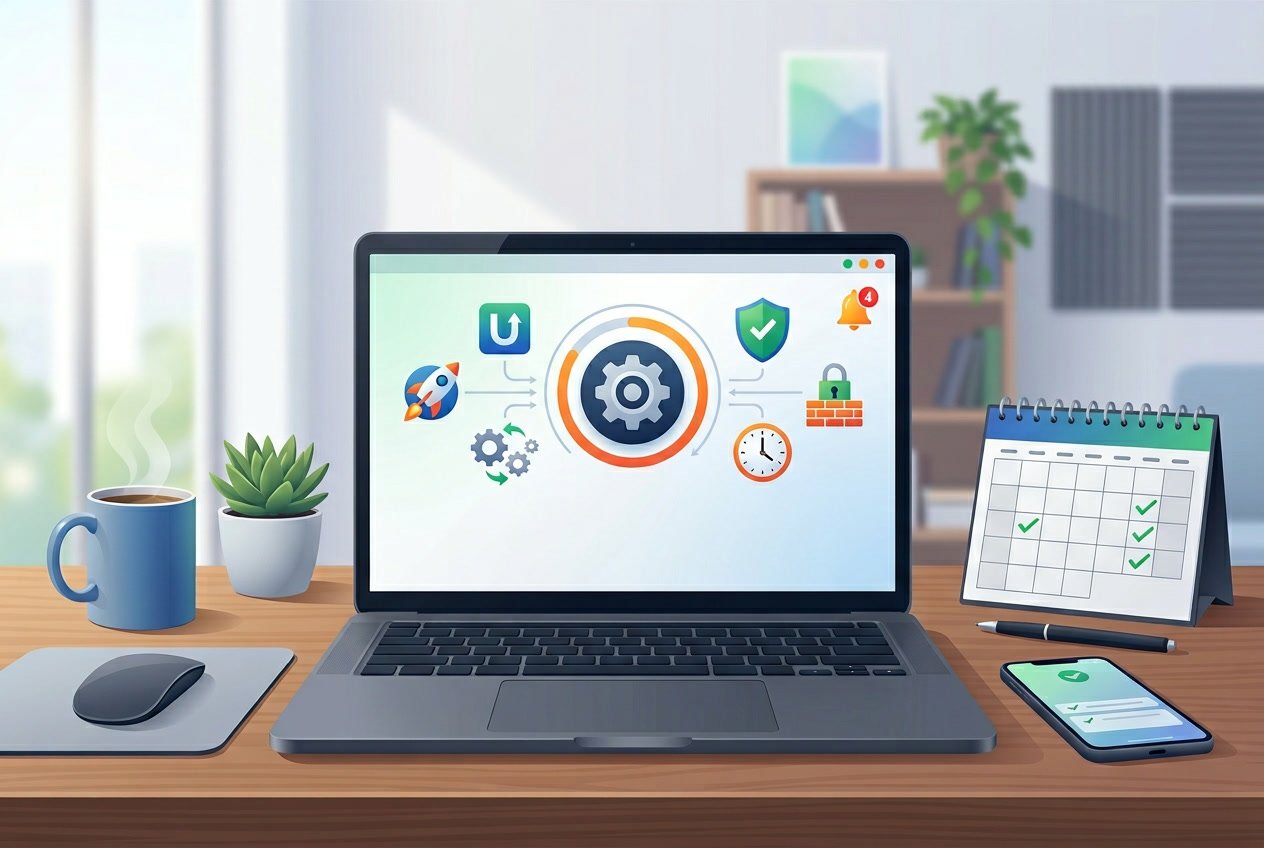
Keeping your laptop’s software current protects against security threats and ensures optimal performance. Updates fix bugs, patch vulnerabilities, and improve compatibility with newer programs and hardware.
Operating System Updates
Your operating system needs regular updates to stay secure and run smoothly. Windows Update delivers critical security patches that protect your laptop from viruses and malware. These updates also fix bugs that could slow down your computer or cause crashes.
You should install operating system updates as soon as they become available. Microsoft releases updates on the second Tuesday of each month, known as Patch Tuesday. Security updates are especially important because they close holes that hackers could use to access your data.
Windows 11 and Windows 10 automatically download updates in the background. You can check for updates manually by going to Settings > Windows Update. Some updates require a restart, so save your work before installing them.
Application and Driver Updates
Your installed programs and hardware drivers need updates just as much as your operating system. Outdated software can create security risks and compatibility problems. Driver updates improve how your laptop communicates with devices like printers, graphics cards, and webcams.
Check for application updates through each program’s settings menu or help section. Many programs now update automatically, but some require manual checks. Your web browser, antivirus software, and productivity tools should stay current.
Driver updates deserve special attention because they directly affect hardware performance. You can update drivers through Device Manager in Windows or download them from your laptop manufacturer’s website. Graphics drivers especially impact performance for gaming and video editing.
Automated Update Settings
Setting up automatic updates saves time and ensures you don’t miss critical patches. Windows lets you schedule when updates install so they don’t interrupt your work. You can set active hours when your laptop won’t restart for updates.
Enable automatic updates for your operating system, antivirus software, and web browser at minimum. These three protect your laptop from the most common threats. Most modern applications include an option to update automatically in their preferences or settings.
You can customize update settings to balance security with convenience. Windows allows you to pause updates for up to five weeks if you need stability for an important project.
Protect Against Security Threats
Your laptop needs multiple layers of defense to stay safe from viruses, malware, and hackers. Installing the right protection software and keeping your security settings updated prevents most threats from damaging your files or stealing your information.
Antivirus and Malware Protection
Antivirus software acts as your first line of defense against harmful programs trying to infect your laptop. Windows Defender comes built into Windows 10 and 11, providing solid basic protection without requiring additional purchases. It updates automatically and runs quietly in the background.
For stronger protection, consider adding Malwarebytes alongside your primary antivirus. This combination works well because Malwarebytes specializes in catching threats that traditional antivirus might miss. You can run the free version for manual scans or upgrade to premium for real-time monitoring.
Key features to look for:
- Real-time scanning that checks files as you open them
- Automatic updates for new threat definitions
- Web protection to block dangerous websites
- Email scanning for malicious attachments
Make sure your antivirus software stays updated with the latest threat databases. Outdated protection leaves gaps that new malware can exploit.
Regular Malware Scans
Schedule full system scans at least once per week to catch any threats that slipped past your real-time protection. These deep scans check every file on your laptop, including hidden system areas where malware likes to hide.
Run a quick scan daily if you download files frequently or visit many different websites. Quick scans take just a few minutes and check the most common infection points. Set your antivirus to run these scans automatically during times when you’re not using your laptop heavily.
If your laptop starts acting strange, run an immediate scan. Warning signs include slower performance, unexpected pop-ups, programs opening on their own, or your browser redirecting to unfamiliar websites.
Firewall and Security Settings
Your firewall monitors all network traffic entering and leaving your laptop, blocking unauthorized connections. Windows Security includes a built-in firewall that you should keep enabled at all times. Check your firewall status by opening Windows Security and clicking on “Firewall & network protection.”
Configure your firewall to block incoming connections for programs you don’t recognize. Enable firewall protection for both private and public networks, as threats can come from any connection type. Public Wi-Fi networks are particularly risky and require maximum protection.
Review your security settings monthly to ensure nothing has changed without your knowledge. Turn on two-factor authentication for your Microsoft account and other important services. This adds an extra verification step that stops attackers even if they steal your password.
Performance Optimization and Monitoring
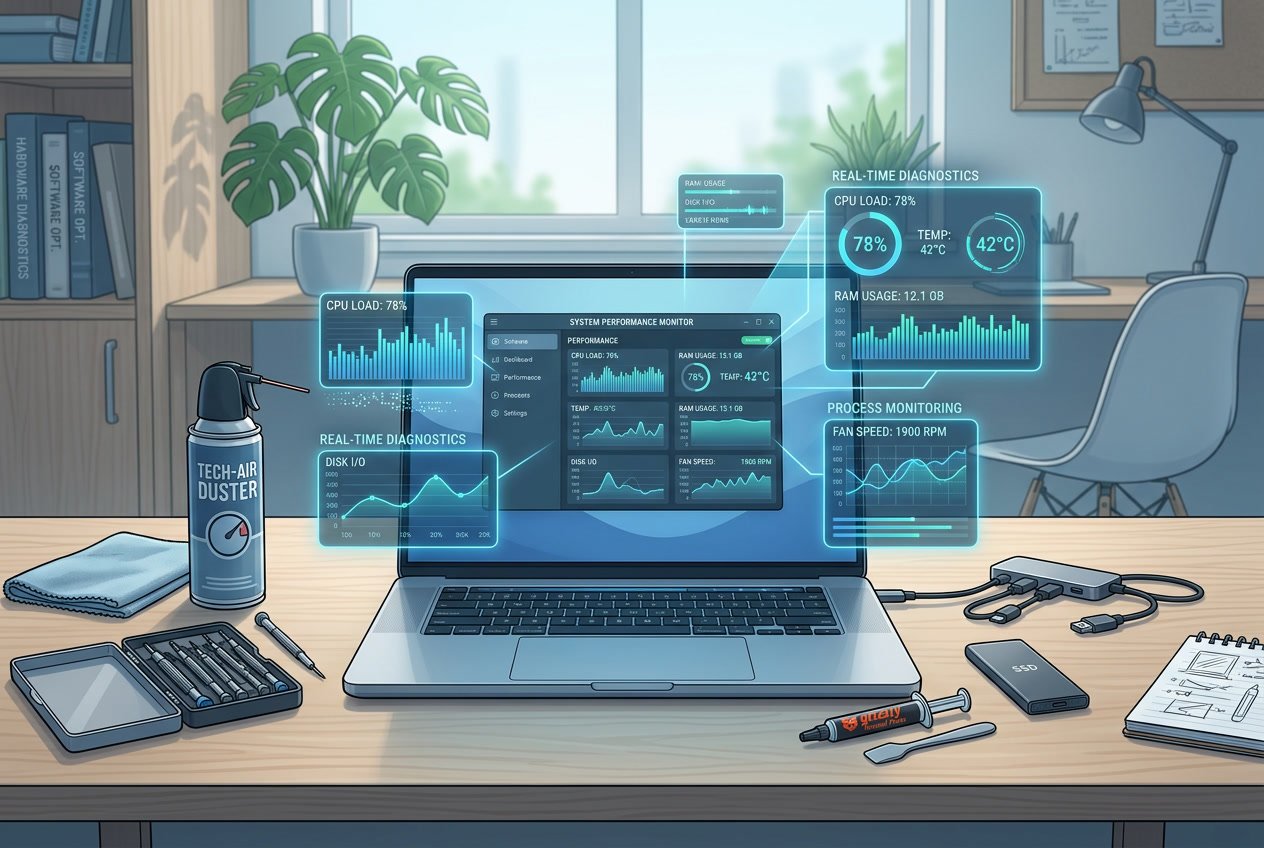
Your laptop’s speed depends on managing what runs in the background and keeping your storage system healthy. Controlling startup programs prevents unnecessary resource drain, while regular drive optimization keeps file access fast and efficient.
Optimize Startup Programs
Many programs automatically launch when you turn on your laptop, which slows down boot times and wastes memory. You need to disable programs that don’t need to run immediately at startup.
On Windows, press Ctrl + Shift + Esc to open Task Manager. Click the Startup tab to see all programs set to launch automatically. Right-click any non-essential program and select Disable. Focus on disabling startup programs like messaging apps, cloud storage sync tools, and update schedulers that you can launch manually when needed.
On Mac, open System Preferences and go to Users & Groups. Click your username, then select Login Items. Highlight any unnecessary programs and click the minus button to remove them.
Programs to keep enabled:
- Antivirus software
- Critical system utilities
- Audio drivers
Programs safe to disable:
- Streaming service apps
- Chat applications
- Software updaters
Monitor Resource Usage
Tracking how your laptop uses its CPU, memory, and disk space helps you identify performance problems before they become serious. Regular performance monitoring shows which programs consume too many resources.
Windows users should open Task Manager and click the Performance tab to view real-time data. The Processes tab shows which specific programs use the most CPU and RAM. Sort by CPU or Memory to find resource-heavy applications. If a program consistently uses over 50% of your CPU or memory, consider closing it or finding a lighter alternative.
Mac users can open Activity Monitor from Applications > Utilities. The CPU tab shows processor usage, while the Memory tab displays RAM consumption. Watch for apps with high CPU percentages or those using excessive memory.
For detailed hardware temperature tracking, use tools like Core Temp or HWMonitor. High temperatures (above 80°C for most laptops) indicate cooling problems or excessive load.
Defragment and Optimize Drives
Hard drives become fragmented over time as files get split into pieces across the disk. This makes your laptop slower when accessing files. SSDs don’t need traditional defragmentation but benefit from optimization.
Windows includes a built-in tool called Optimize Drives. Search for “defragment” in the Start menu and open Defragment and Optimize Drives. Select your drive and click Analyze to check fragmentation levels. For traditional hard drives, click Optimize to run disk defrag. Windows automatically optimizes SSDs using TRIM commands.
Schedule automatic optimization by clicking “Change settings” and selecting a weekly or monthly frequency. This keeps your drives optimized without manual intervention.
Mac users don’t need manual defragmentation since macOS handles this automatically. SSDs in modern Macs use built-in optimization that runs in the background.
Add these tasks to your maintenance checklist and check them monthly to maintain peak performance.
Routine Data Backup and Recovery
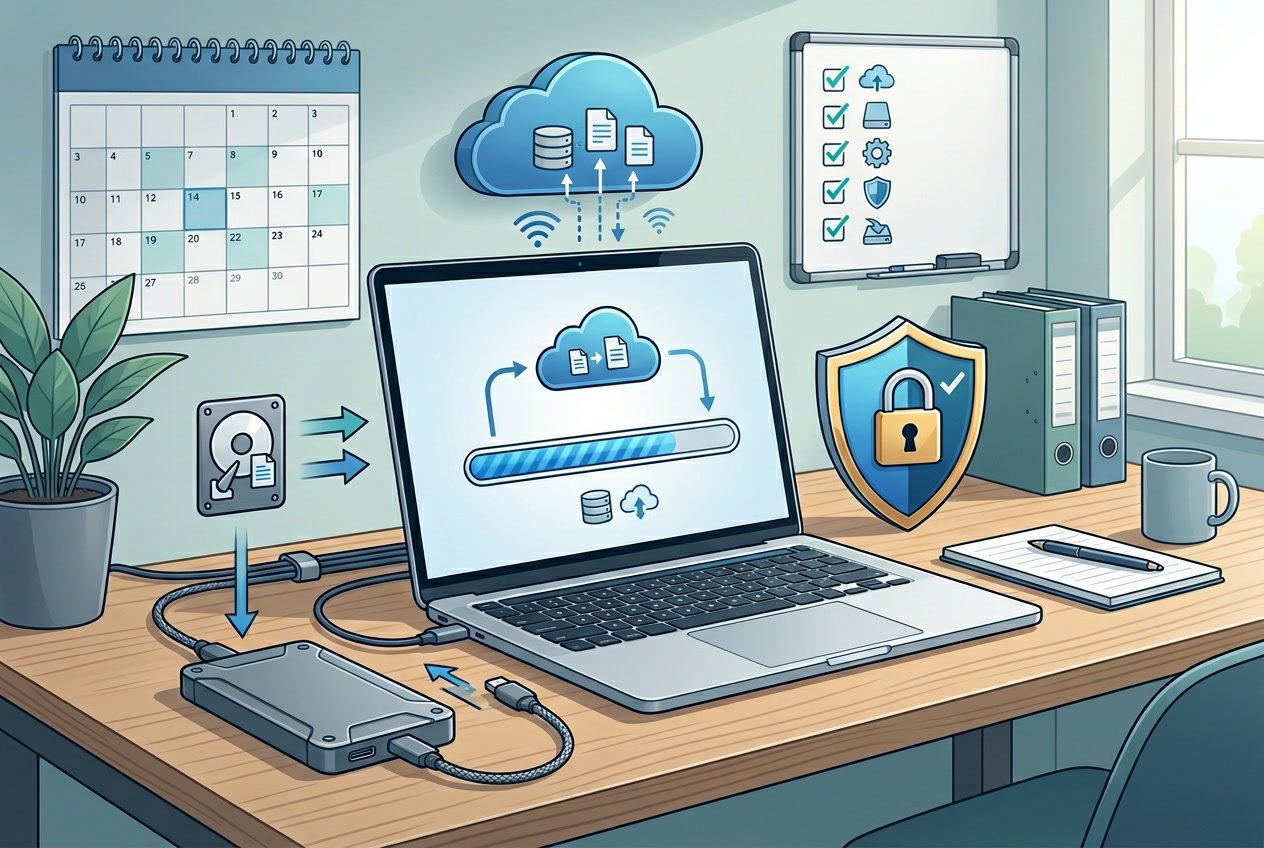
Regular backups protect your laptop data from hardware failures, accidental deletions, and malware attacks. Setting up automatic backups through built-in tools or cloud services ensures your files stay safe without requiring constant manual effort.
Establish Backup Schedules
You should create a backup schedule that matches how often you create or modify important files. If you work with critical documents daily, set up daily backups. For less frequent computer use, weekly backups may suffice.
Automatic backups remove the risk of forgetting to manually save your data. Configure your backup system to run at times when you typically don’t use your laptop, such as overnight or during lunch breaks. This prevents the backup process from slowing down your work.
Different types of files need different backup frequencies:
- Work documents and projects: Daily backups
- Photos and videos: Weekly backups
- System settings and applications: Monthly backups
- Large media libraries: Bi-weekly backups
Test your backups monthly by restoring a few files to verify they work correctly. A backup that fails during recovery is worthless when you need it most.
Use Built-In Backup Tools
Windows laptops include File History for automatic file backups in your libraries, desktop, and favorites folders. Connect an external drive, navigate to Settings > Update & Security > Backup, and enable File History to protect your data continuously.
Mac users have Time Machine, which creates hourly, daily, and weekly backups automatically. Connect an external drive, open System Preferences, select Time Machine, and choose your backup disk. Time Machine saves snapshots of your entire system, letting you restore individual files or your complete laptop.
Both tools run in the background without interrupting your work. They only back up files that changed since the last backup, saving storage space and time. Keep your backup drive connected regularly so the system can maintain current backups.
Leverage Cloud Backup Solutions
Cloud backup services store your files on remote servers, protecting them from physical damage to your laptop or external drives. Popular options include OneDrive, Google Drive, iCloud, and Dropbox.
Most cloud services offer automatic syncing, uploading new and modified files without manual intervention. This creates an off-site backup that you can access from any device with internet connection.
Choose a cloud backup plan based on your storage needs:
| Storage Amount | Best For | Typical Cost |
|---|---|---|
| 50-100 GB | Documents and photos | $2-3/month |
| 500 GB – 1 TB | Photos, videos, work files | $5-10/month |
| 2+ TB | Complete system backup | $10-20/month |
Enable encryption for sensitive files before uploading them to cloud storage. Set your cloud backup to sync only on Wi-Fi connections to avoid using mobile data. Keep at least one local backup alongside your cloud backup for faster recovery and redundancy.
Physical Care and Safe Handling
Taking care of your laptop’s physical condition protects both the device and your data from damage. The right transportation methods, awareness of physical risks, and quality accessories keep your laptop working longer.
Proper Laptop Transportation
Always use a padded laptop bag designed specifically for your device’s size. A good laptop bag has cushioned compartments that absorb shock and prevent your computer from shifting during travel.
Never carry your laptop while it’s open or running. Close the lid completely and wait for it to enter sleep mode before moving it. This protects the hard drive and screen from damage.
Keep your laptop bag separate from heavy or sharp objects. Keys, tools, and water bottles can puncture your bag or crush your device. Store these items in different compartments or bags.
When traveling by car, place your laptop bag on the floor behind a seat rather than in the trunk. Temperature changes in the trunk can harm internal components. On planes, keep your laptop with you as carry-on luggage instead of checking it.
Avoiding Physical Damage
Never place items on top of your closed laptop. Even light objects can crack the screen or damage internal parts over time.
Keep food and drinks away from your work area. Liquid spills are one of the most common causes of laptop failure. If a spill happens, turn off your laptop immediately and unplug it to protect your data and components.
Don’t pick up your laptop by the screen. Always lift it from the base with both hands. The screen hinges are delicate and can break from repeated stress.
Avoid using your laptop in extreme temperatures. Heat above 95°F or cold below 50°F can damage the battery and other components. Let your laptop adjust to room temperature before turning it on after being in extreme conditions.
Using Appropriate Accessories
Buy a laptop stand or cooling pad to improve airflow. These accessories prevent overheating, which extends your device’s lifespan and maintains performance.
Use a screen protector and keyboard cover for added protection. Screen protectors prevent scratches, while keyboard covers block dust and crumbs from entering the device.
Choose the right charger for your specific laptop model. Third-party chargers that don’t meet manufacturer specifications can damage your battery or cause electrical problems. Keep your charger cord organized and avoid wrapping it too tightly, which can fray the wires.
Invest in a surge protector to guard against power spikes. Electrical surges can destroy your laptop’s internal components and corrupt files, putting your data at risk.
Remove Unused Apps and Files
Old programs and forgotten files pile up on your laptop over time and slow down performance. Clearing out these items frees up storage space and helps your system run more smoothly.
Uninstall Unnecessary Programs
You can remove unwanted Windows programs through the Settings app to free up disk space. Open Settings, click on System, then select Apps and Features to see all installed programs. Review the list and click Uninstall next to any programs you don’t use.
Preinstalled apps often take up space without providing value. Many Windows computers come with trial software and manufacturer apps you never opened. Check your installed programs for items like old games, outdated utilities, or duplicate photo editors.
Third-party tools like CCleaner can help identify programs you rarely use. These tools show you when you last opened each application. You should focus on large programs first since they offer the most storage savings.
Periodic Storage Audits
Set a reminder to check storage every three to six months. Open Settings and go to System, then Storage to see what takes up space on your drive. Windows shows you categories like Apps, Documents, Pictures, and Temporary Files with the space each category uses.
Click on each category to see more details. The Temporary Files section often contains gigabytes of unnecessary data you can safely delete. Download folders typically fill up with old installers and files you no longer need.
Look for duplicate files, especially large videos or photos. Sort your Documents and Downloads folders by size to quickly spot files worth deleting. Move important files you don’t access often to an external drive or cloud storage.
Final Thoughts
Taking care of your laptop doesn’t require advanced technical skills. The maintenance tips covered here can help you keep your device running smoothly for years to come.
Regular cleaning keeps dust from building up in vents and ports. Being mindful of how you charge protects your battery from premature wear. Managing your software by removing bloatware and limiting startup programs prevents your system from slowing down over time.
Small habits make a big difference. Restarting your computer when it feels sluggish clears temporary files and fixes minor bugs. Keeping your operating system and software updated patches security holes and improves performance.
Your laptop is an investment worth protecting. Physical care matters just as much as digital maintenance. Avoid using harsh cleaning chemicals on your screen. Keep your vents clear of obstructions when you work.
Security practices protect both your device and your personal information. Use strong passwords and enable disk encryption. Stay cautious about the links you click and files you download.
The key to laptop maintenance is consistency. You don’t need to do everything at once. Start with one or two practices that fit your routine. Add more as they become habits.
Your device will reward your efforts with better performance and longer lifespan. Most people keep their laptops for several years, making these simple maintenance tasks a worthwhile time investment.