
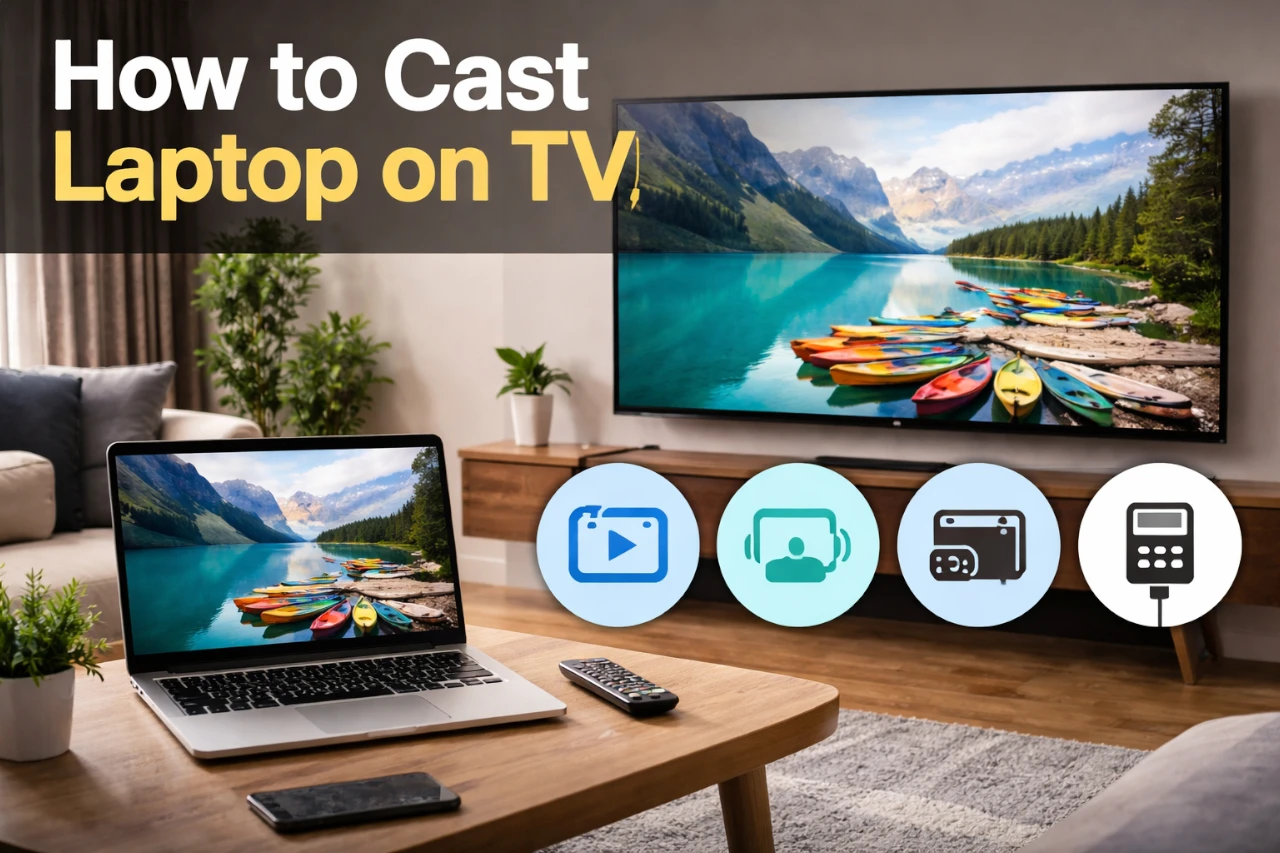
Casting your laptop to a TV makes work, videos, and photos easier to share on a bigger screen. You might want to watch a movie, show slides, or mirror your screen for a meeting. When it works smoothly, it saves time and avoids cables across the room.
You can cast your laptop to a TV using built‑in wireless tools like Miracast or AirPlay, a streaming device, or a simple HDMI cable.
The best option depends on your laptop type, TV features, and internet setup.
You’ll learn what you need before you start, how casting works on Windows and Mac laptops, and when devices like Chromecast help. You’ll also see how to stop casting, fix common problems, and avoid simple mistakes that cause lag or connection issues.
Key Takeaways
- You need the right laptop, TV, and connection before casting works.
- Windows, Mac, and other laptops use different built‑in tools to cast.
- You can control, stop, and fix casting with simple settings and tips.
Essential Requirements Before Casting
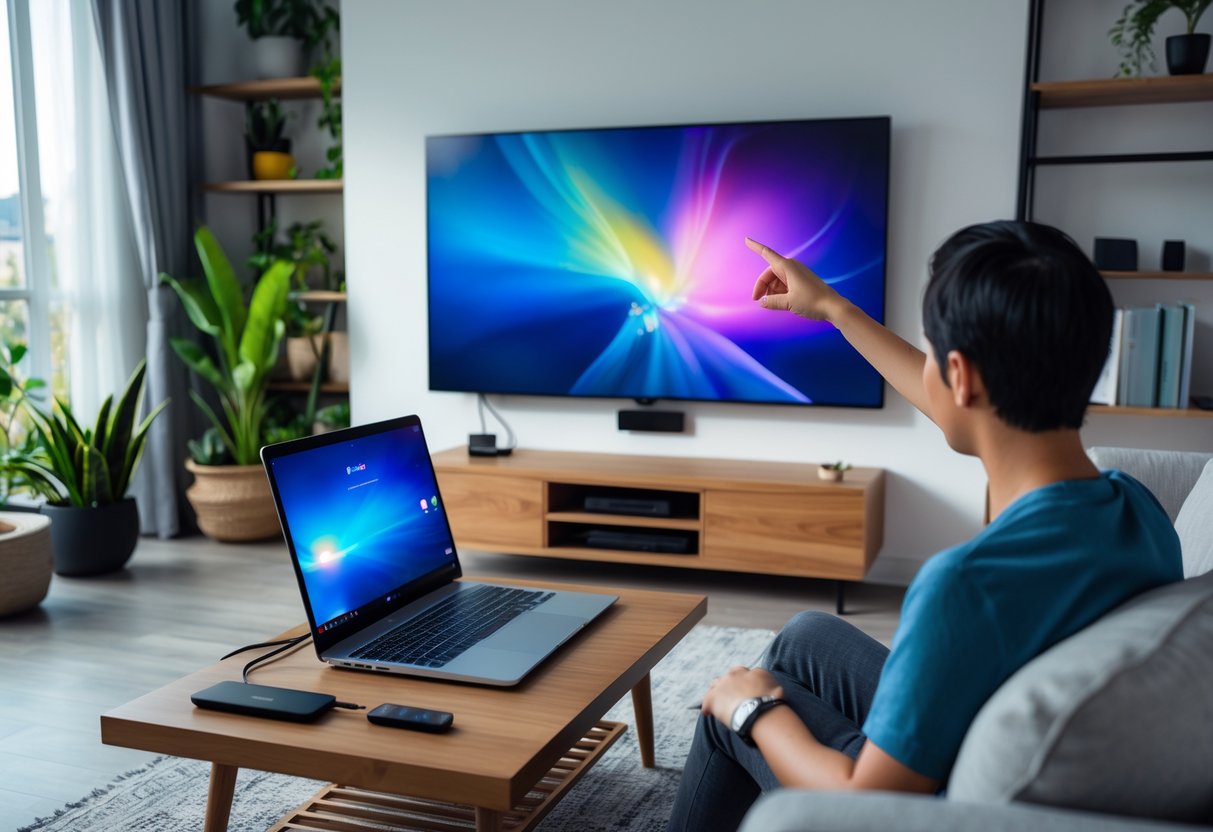
You need the right hardware, a stable network, and a clear plan for how you will connect. Small setup gaps cause most casting failures, not the TV or the laptop itself.
Compatibility Check for Laptops and TVs
Start by checking what your laptop and TV support. Most Windows laptops include Miracast for wireless display, but many older models ship with it disabled. You can confirm support in Windows display settings.
Smart TVs often support Miracast, but brand limits matter. Many Samsung and LG TVs work well, while others need a Miracast adapter or Miracast dongle plugged into HDMI.
Use this quick check:
| Device | What to confirm |
|---|---|
| Windows laptop | Miracast support enabled |
| Mac laptop | AirPlay support (not Miracast) |
| TV | Built-in wireless display or HDMI input |
If your TV lacks wireless display support, an HDMI-based solution avoids compatibility issues. For a broader overview of supported methods, this guide to casting a laptop to a TV breaks down common setups.
Wi‑Fi and Network Setup Essentials
Wireless casting depends on your network. Your laptop and TV must connect to the same Wi‑Fi network. Guest networks and mesh systems often block device discovery.
A strong signal matters more than speed. Miracast uses direct device connections but still needs stable wireless conditions. Interference from routers, walls, or Bluetooth devices can cause lag or dropouts.
Before casting, do this:
- Turn on Wi‑Fi, even if you use Ethernet on your laptop
- Restart your router if devices fail to appear
- Disable VPNs that block local network traffic
If Wi‑Fi stays unstable, switch to a wired option. It removes network limits and cuts troubleshooting time.
Choosing Between Wired and Wireless Methods
Your choice depends on how you plan to use the screen. Wireless display works well for slides, browsing, and short videos. It struggles with games and fast motion.
An HDMI cable gives the most reliable result. It supports high resolution, steady audio, and zero lag. Many laptops need a USB‑C hub or dock to add HDMI.
Compare your options:
- Wireless display or dock: clean setup, more lag
- Miracast dongle: flexible, depends on Wi‑Fi quality
- HDMI cable: stable, best for long sessions
If you want consistent results with less setup, wired connections save time and avoid errors.
How to Cast a Windows Laptop on TV
You can cast a Windows laptop to a TV using wireless casting or a cable. Windows supports built-in screen mirroring with Miracast, simple HDMI connections, and flexible display modes to control what shows on your TV.
Using Miracast for Wireless Display
Miracast lets you mirror your laptop screen to a TV without cables. Your TV must support Miracast, or you must use a compatible adapter. Most Windows 10 and Windows 11 laptops include this feature.
To start, press Windows key + P, then select Connect to a wireless display. Choose your TV from the list. Windows creates a direct Wi‑Fi link, so both devices must stay on the same network.
Miracast works best for slides, web browsing, and videos. It may lag during fast motion. Lifewire explains how Windows uses Miracast and Wi‑Fi Direct for screen mirroring in its guide on mirroring a laptop to a TV with Miracast.
Connecting with HDMI Cable
An HDMI cable gives the most stable connection. It sends video and audio at the same time and does not depend on Wi‑Fi. This method works with nearly all TVs.
Plug one end of the HDMI cable into your laptop and the other into the TV. Then switch the TV input to the correct HDMI port. Windows should detect the TV right away.
Use HDMI if you plan to watch movies, play games, or avoid delay. Anker outlines wired and wireless casting options in its guide on casting a laptop to a TV using adapters and cables.
Setting Up a Miracast Adapter or Dongle
If your TV does not support Miracast, you can add it with a Miracast adapter or Miracast dongle. These devices plug into the TV’s HDMI port and connect by USB or wall power.
After setup, your TV appears as a wireless display in Windows. You connect the same way as built-in Miracast using Windows key + P and Connect to a wireless display.
This option costs more than a cable but keeps your setup clean. MSPowerUser covers Windows 11 wireless display setup in its article on connecting a laptop to a TV wirelessly on Windows 11.
Adjusting Windows Display Modes
Windows lets you control how your screen appears on the TV. Press Windows key + P to switch modes.
| Mode | What It Does |
|---|---|
| Duplicate | Shows the same screen on laptop and TV |
| Extend | Uses the TV as extra workspace |
| Second screen only | Shows content only on the TV |
Use Second screen only for movies or presentations. Choose Extend if you want more room to work. These settings help you avoid stretched screens or unwanted pop-ups during wireless casting or HDMI use.
How to Cast a Mac or Chromebook on TV
You can cast a Mac or Chromebook to a TV using wireless tools like AirPlay and Chrome casting, or with cables for a steady picture. The best choice depends on your TV, your laptop ports, and whether you want low lag or simple setup.
Using AirPlay on macOS
AirPlay lets you mirror or extend your Mac screen to a TV without cables. You click the AirPlay icon in the menu bar, then choose your TV or streaming device. Your Mac and TV must use the same Wi‑Fi network.
AirPlay works best for videos, photos, and presentations. It can lag during games or fast motion. You can choose Mirror Display to show the same screen or Use as Separate Display to add space.
If you do not see the AirPlay icon, open System Settings, go to Displays, and turn on “Show mirroring options.” AirPlay works only on Macs with modern macOS versions and supported TVs or devices.
Casting from Chrome Browser
Chromebooks and Macs can cast from the Chrome browser using Chromecast. You open Chrome, select the three-dot menu, and choose Cast. Then you pick the TV.
Chrome lets you cast a tab, your desktop, or a video file. Tab casting works best for websites and streaming. Desktop casting can show anything, but it uses more bandwidth and may stutter.
Chromecast works on many smart TVs and streaming sticks. Setup and common fixes are explained in this guide on how to cast from laptop to TV using Chromecast. Keep Chrome updated to avoid connection issues.
Connecting with DisplayPort or USB-C to HDMI
A cable gives the most stable picture and sound. Many Macs and Chromebooks use USB‑C to HDMI or DisplayPort to HDMI connections. You plug the adapter into your laptop, then connect an HDMI cable to the TV.
Use the right adapter for your port. Cheap adapters can cause flicker or no signal.
Common options
- USB‑C to HDMI adapter: Most modern Macs and Chromebooks
- DisplayPort to HDMI: Older laptops with full-size DisplayPort
After you connect, open display settings to choose mirror or extend. Cable connections work well for work, movies, and games.
AirPlay-Compatible TVs and Devices
Some TVs support AirPlay without extra hardware. Brands like Samsung, LG, and Sony include AirPlay on many newer models. Apple TV also supports AirPlay on any TV with HDMI.
You select the TV from the AirPlay list on your Mac. The TV shows a code the first time you connect. This helps prevent mistakes.
AirPlay-compatible TVs reduce clutter and setup time. You still need strong Wi‑Fi for smooth video. If video drops, move closer to the router or switch to a wired connection.
For Chromebook users, AirPlay does not work. This guide on how to connect a Chromebook to your TV explains wireless and wired options that fit ChromeOS.
Casting with Streaming Devices
Streaming devices let you send your laptop screen or browser tab to your TV without cables. Google Chromecast works best with Chrome, while other devices support screen mirroring through apps. Setup matters, and small mistakes can stop casting from working.
Casting Using Google Chromecast
Google Chromecast lets you cast directly from your laptop to your TV over Wi‑Fi. You need a Chromecast device plugged into the TV and connected to the same network as your laptop.
The easiest method uses Chrome. Open Chrome, click the three-dot menu, select Cast, then choose your Chromecast. You can cast a browser tab, desktop, or supported video site. Tab casting works best for videos because it keeps audio and video in sync.
Chromecast supports many sites like YouTube and Netflix, but not all content allows casting. Some services block it due to licensing rules. Google documents supported casting methods clearly on its help pages: https://support.google.com/chromecast.
Using Google Home App for Setup
You must set up Google Chromecast with the Google Home app before you can cast from your laptop. Install the app on your phone or tablet, not your laptop.
Open Google Home, sign in with your Google account, and add a new device. The app guides you through Wi‑Fi setup and room placement. Follow each step exactly, or casting may fail later.
If casting does not appear in Chrome, check these basics:
- Your laptop and Chromecast use the same Wi‑Fi network
- Chrome is up to date
- The Chromecast shows as online in Google Home
Google provides setup steps and troubleshooting here: https://support.google.com/googlenest.
Third-Party Screen Mirroring Alternatives
Other streaming devices also mirror your laptop screen, but they work differently. Popular options include Roku, Amazon Fire TV, and Apple TV.
These devices often rely on system-level mirroring instead of Chrome. For example:
- Windows uses Project or Wireless Display
- macOS uses AirPlay for Apple TV
Third-party apps like AirScreen or LetsView can add Chromecast-style support, but performance varies. Expect more lag with full desktop mirroring than with cast from Chrome. Roku and Fire TV explain supported mirroring methods on their official sites:
Controlling and Stopping Laptop-to-TV Casting
You control how your laptop appears on the TV, when to end the connection, and how to fix common sound or picture problems. Small setting changes can prevent confusion, save battery, and keep meetings or movies running smoothly.
Switching Display Modes
You can change how your laptop uses the TV at any time. On Windows, press Windows + P. On Mac, open System Settings > Displays.
Use the mode that fits your task:
| Mode | What it Does | When to Use It |
|---|---|---|
| Duplicate | Shows the same screen on both | Presentations and demos |
| Extend | Adds the TV as extra space | Workflows with many apps |
| Second screen only | Turns off the laptop screen | Movies or couch viewing |
If text looks blurry, set the TV to its native resolution and refresh rate. Many TVs work best at 1080p or 4K at 60Hz. Wireless methods may limit options, while cables give more control, as explained in this guide on how to cast your laptop to a TV.
Disconnecting and Stop Mirroring
Stop mirroring when you finish to protect privacy and save power. On Windows, open Windows + P and select PC screen only, or turn off casting from Settings > Display. On Mac, open Control Center > Screen Mirroring and choose Stop Mirroring.
If you used a cable, unplug it after switching back to the laptop screen. This avoids app windows jumping to the TV next time you connect. Some TVs keep the session active; switching inputs on the TV also ends the connection.
Fixing Audio and Video Issues
If sound plays from the wrong device, select the TV as the output. On Windows, click the speaker icon and choose the TV. On Mac, open Sound settings and pick the TV.
For lag or dropped video, move closer to the router or switch to a wired HDMI cable. Wireless casting can stutter on busy networks. If audio and video fall out of sync, lower the resolution or close heavy apps. Restarting the cast often clears stuck settings fast.
Tips, Advanced Apps, and Troubleshooting
You can get smoother casting by tuning your Wi‑Fi, choosing the right media app, and fixing common errors fast. The tips below focus on steps you can take right now to improve quality and reliability.
Improving Wireless Casting Performance
Use a strong, stable network. Place your laptop and TV on the same Wi‑Fi and stay close to the router.
- Use 5 GHz Wi‑Fi when possible. It handles video better and has less interference than 2.4 GHz. Many routers support it by default. Google recommends 5 GHz for Chromecast and similar devices: https://support.google.com/chromecast/answer/6296648
- Close heavy apps on your laptop. Video calls, cloud sync, and downloads can steal bandwidth.
- Lower display settings if you see stutter. Drop the laptop output to 1080p and 60 Hz.
- Update drivers and firmware. Outdated Wi‑Fi drivers cause drops and lag.
If your router sits far away, a simple fix helps. Move the router closer or use a wired Ethernet connection for the TV or laptop.
Using Media Apps like Plex or VLC
Media apps often work better than full screen mirroring. They send the video file directly to the TV.
Plex streams your library with less lag and better quality. You install Plex Media Server on your laptop, then play videos on the TV app. Plex supports subtitles, resume play, and user profiles. Learn more at https://www.plex.tv/media-server/
VLC also helps. You can stream a file to a TV using Chromecast or play network streams. VLC stays free and open source. See the official guide at https://www.videolan.org/vlc/
When to use apps instead of mirroring
- Long movies or TV shows
- Large video files
- Subtitles or audio track control
Mirroring still works for slides or web pages. For media, apps give you steadier playback.
Troubleshooting Casting Errors
Most casting problems come from network or device mismatches. Check the basics first.
| Problem | Quick Fix |
|---|---|
| TV not found | Put both devices on the same Wi‑Fi |
| Audio but no video | Lower resolution or restart the app |
| Lag or freezes | Switch to 5 GHz or pause other traffic |
| Black screen | Update GPU drivers and TV firmware |
If errors continue, reboot the router and both devices. Power cycles clear stuck connections.
App-specific issues need app fixes. Update Plex or VLC to the latest version. Check firewall settings that may block local streaming. Plex documents common network blocks here: https://support.plex.tv/articles/200430283/
Final Thoughts
You now know how to cast a laptop on a TV using wireless and wired options. Wireless tools like Miracast and AirPlay work well when both devices share the same Wi‑Fi network. Wired HDMI setups stay simple and stable, especially when you want fewer delays or higher video quality, as explained in this guide on connecting a laptop to a TV with wired and wireless methods.
Your best choice depends on your laptop, your TV, and how you plan to use the screen. Windows laptops often use Miracast, while MacBooks rely on AirPlay. Both methods follow clear steps and need only a few settings changes, as shown in this walkthrough on how to cast your laptop to a TV. HDMI still works on almost every setup and avoids network issues.
Quick comparison
| Method | Best for | Watch out for |
|---|---|---|
| Wireless casting | Clean setup, quick sharing | Needs strong Wi‑Fi |
| HDMI cable | Video quality, low lag | Extra cable or adapter |
Before you start, check ports, cables, and network access. Make sure your TV allows screen mirroring and your laptop supports the method you choose. This practical overview of how to mirror a laptop to a TV helps you avoid common setup problems and wasted time.