

Your Lenovo laptop can slow down, freeze, or fail to start. A reset can fix system errors, remove unwanted files, or prepare the device for sale. When you know the right method, you can solve most software problems on your own.
You can reset a Lenovo laptop through Windows Settings or by using the Novo button to access Lenovo’s recovery menu.
Choose “Keep my files” to save personal data or “Remove everything” for a full factory reset.
If Windows will not start, use the Novo button or recovery tools from boot to restore the system.
You will learn how to prepare your device, back up your data, and pick the right reset option. You will also see how to reset from Windows, use the Novo button menu, handle startup issues, and set up your laptop after the reset.
Key Takeaways
- Reset your Lenovo through Windows or the Novo recovery menu.
- Back up your files before you start any reset process.
- Use recovery tools if your laptop will not boot normally.
Preparing for a Lenovo Laptop Reset
Prepare your files, power, and security settings before you factory reset your Lenovo laptop. Careful setup prevents data loss and reduces errors during the reset process.
Back Up Important Data
Before you reset your Lenovo laptop, save your personal files. A factory reset can remove apps, settings, and in some cases all data.
Copy documents, photos, and videos to an external hard drive or USB flash drive. You can also use a cloud service like OneDrive or Google Drive if your internet speed is stable.
If you plan to use Windows built‑in reset tools, review the steps in this guide on how to factory reset a Lenovo laptop using Windows Settings. Even if you choose Keep my files, you should still create a full backup.
Do not forget browser bookmarks, saved passwords, and software license keys. Sign in to your Microsoft account to confirm your files sync correctly before you start the reset.
Check Laptop Power and Connections
Connect your charger before you begin. A reset can take 30 minutes to over an hour depending on your system and storage speed.
If the laptop loses power during a factory reset, it can corrupt system files. This may prevent Windows from starting properly.
If you select Cloud download during the reset process, connect to a stable Wi‑Fi network. The system will download a fresh copy of Windows, which requires several gigabytes of data.
Place your laptop on a flat surface with good airflow. Avoid moving it while it reinstalls Windows and restarts several times.
Disable Encryption and Remove Devices
Check if BitLocker encryption is turned on. Go to Control Panel > BitLocker Drive Encryption and confirm its status.
If BitLocker is active, make sure you have the recovery key saved to your Microsoft account or written down. You may need this key after you reset your Lenovo laptop.
Sign out of apps like Microsoft Office, Adobe, and other licensed software. This helps avoid activation issues later.
Unplug external devices such as printers, USB drives, and external monitors. Leave only the charger connected. This reduces driver conflicts during the factory reset Lenovo laptop process.
What to Expect During Reset
When you factory reset your Lenovo laptop, the system removes installed programs and restores Windows to its original state. You can choose to keep personal files or remove everything.
Your laptop will restart several times. You may see messages like Resetting this PC or a progress percentage on the screen.
Some Lenovo models include a recovery option through the Novo button. You can review how this works in this guide on using the Lenovo OneKey Recovery and Novo button.
After the reset finishes, Windows will ask you to set up your region, keyboard, Wi‑Fi, and account. You will then reinstall apps and restore your files from your backup.
Resetting Lenovo Laptop Using Windows Settings
You can reset your Lenovo laptop directly in Windows without extra tools. The Reset This PC feature lets you keep personal files or remove everything and reinstall Windows.
Accessing Reset This PC
Open Start and select Settings.
In Windows 11, go to System > Recovery > Reset PC.
In Windows 10, go to Update & Security > Recovery > Get started.
You can follow the detailed steps in this guide on how to factory reset a Lenovo laptop using Reset This PC.
If Windows will not load, restart your laptop and enter the Windows Recovery Environment. From there, choose Troubleshoot > Reset this PC. This method works when your system crashes, freezes, or fails to boot.
Keep your laptop plugged into power before you continue. A reset can take 30 minutes or more.
Choosing Between Keep My Files and Remove Everything
You must choose between two main options:
- Keep my files
- Remove everything
Keep my files deletes apps and settings but saves your documents, pictures, and personal files in your user folder. Windows still reinstalls the operating system. This option works well if your laptop runs slowly or has software errors.
Remove everything performs a full factory reset Lenovo process. It deletes all accounts, apps, settings, and personal files. Choose this if you plan to sell, donate, or recycle the laptop.
If you want extra security, select the option to fully clean the drive. This takes longer but makes file recovery harder.
Back up important data before either option. Even the file‑saving option can fail if something interrupts the process.
Cloud Download vs. Local Reinstall
After choosing what to remove, you must pick how to reinstall Windows:
- Cloud download
- Local reinstall
Cloud download downloads a fresh copy of Windows from Microsoft’s servers. It uses over 4 GB of data and requires a stable internet connection. This option helps if your current Windows files are damaged.
Local reinstall uses system files already stored on your laptop. It works faster and does not require internet access. However, if those files are corrupted, the reset may fail.
Choose cloud download if you suspect deep system damage. Choose local reinstall if your system files are intact and you want a quicker process.
Starting the Reset Process
After you confirm your choices, Windows shows a summary of what will happen. Review it carefully.
Select Reset to begin. Your laptop will restart several times while it reinstalls Windows and applies default settings. Do not turn it off during this stage.
If you selected Remove everything with drive cleaning, the process will take longer. The system may appear idle, but it is working in the background.
When the reset finishes, Windows displays the setup screen. You must choose your region, keyboard layout, network, and sign in with a Microsoft or local account. Your Lenovo laptop will then return to its default Windows state.
Resetting with the Novo Button and Novo Button Menu
You can reset your Lenovo laptop even if Windows will not start. The Novo button opens the Novo button menu, which gives you direct access to the Lenovo recovery environment and Lenovo OneKey Recovery.
Locating and Using the Novo Button
The Novo button is a small recessed button on many Lenovo laptops. You usually find it near the power button or on the side of the device.
On some models, the button sits inside a small pinhole. You must press it with a straightened paper clip or SIM eject tool. This design prevents you from pressing it by mistake.
To use it:
- Shut down your laptop completely.
- Press the Novo button once.
- Wait for the laptop to power on and open the Novo button menu.
If your system does not boot normally, this method often works because it loads a separate recovery environment instead of Windows. You can read more about how the Novo feature works in this guide on the Lenovo Novo Button and its functions.
Navigating the Novo Button Menu
When the Novo button menu appears, you see several startup options. These usually include:
- Normal Startup
- BIOS Setup
- Boot Menu
- System Recovery
Use the arrow keys to move through the list. Press Enter to select an option.
To reset your laptop, choose System Recovery. This loads the Lenovo recovery environment, not your regular Windows desktop.
If your keyboard does not respond, restart the process and press the Novo button again. Make sure the laptop was fully powered off before you began. The menu gives you low-level access, which helps when Windows settings are not available.
System Recovery via OneKey Recovery
After you select System Recovery, the system opens Lenovo OneKey Recovery. This tool lets you restore your laptop to factory settings or use a custom backup.
You will see options such as:
- Restore from initial backup
- Restore from user’s backup
- Select source image (if you saved an external recovery image)
Choose Restore from initial backup to return the laptop to its original factory state. This erases your personal files and installed apps.
If you created your own recovery image, choose Restore from user’s backup and then Select source image to locate it. The reset process may take several minutes. When it finishes, the laptop restarts and shows the Windows setup screen.
Using Lenovo Recovery Tools
Lenovo recovery tools let you reset your laptop without extra software. You can access the built‑in recovery environment, restore from the initial factory image, or use a backup you created earlier.
Accessing the Lenovo Recovery Environment
You can open Lenovo Recovery even if Windows will not load. Many IdeaPad and ThinkPad models include a small NOVO button on the side or near the power button.
- Turn off your laptop.
- Press the NOVO button with a paper clip.
- Choose System Recovery from the menu.
This opens Lenovo OneKey Recovery, which loads a separate recovery environment. On newer systems, you can also access recovery through Windows settings as explained in this guide on how to factory reset a Lenovo laptop.
If Windows still works, go to Settings > System > Recovery > Reset PC in Windows 11. In Windows 10, go to Settings > Update & Security > Recovery.
Keep your laptop plugged in during this process. Power loss can interrupt recovery and cause errors.
Restoring from Initial Backup
Choose Restore from initial backup if you want to return your laptop to its original factory state. This option uses the hidden factory image stored on your drive.
In Lenovo OneKey Recovery:
- Select Restore from initial backup
- Confirm the warning about data loss
- Start the reset
This removes installed apps, personal files, and settings. Your system returns to the same condition it was in when you first bought it.
Use this option if you plan to sell the laptop or fix major system issues. Back up your files before you start. Once the process begins, you cannot cancel it.
Restoring from User’s Backup
Choose Restore from user’s backup if you created a custom backup earlier. This option lets you return to a specific saved system state.
When prompted, you must select source image. This image may be stored on:
- A separate drive partition
- An external USB drive
- Another storage device
Make sure the backup file matches your model and Windows version. If the system cannot detect the file, check that the external drive is connected and powered on.
This method keeps the system closer to your preferred setup. It restores your saved apps and settings from the backup date. It does not recover files created after that backup unless you saved them elsewhere.
Resetting Without Password or If Windows Won’t Boot
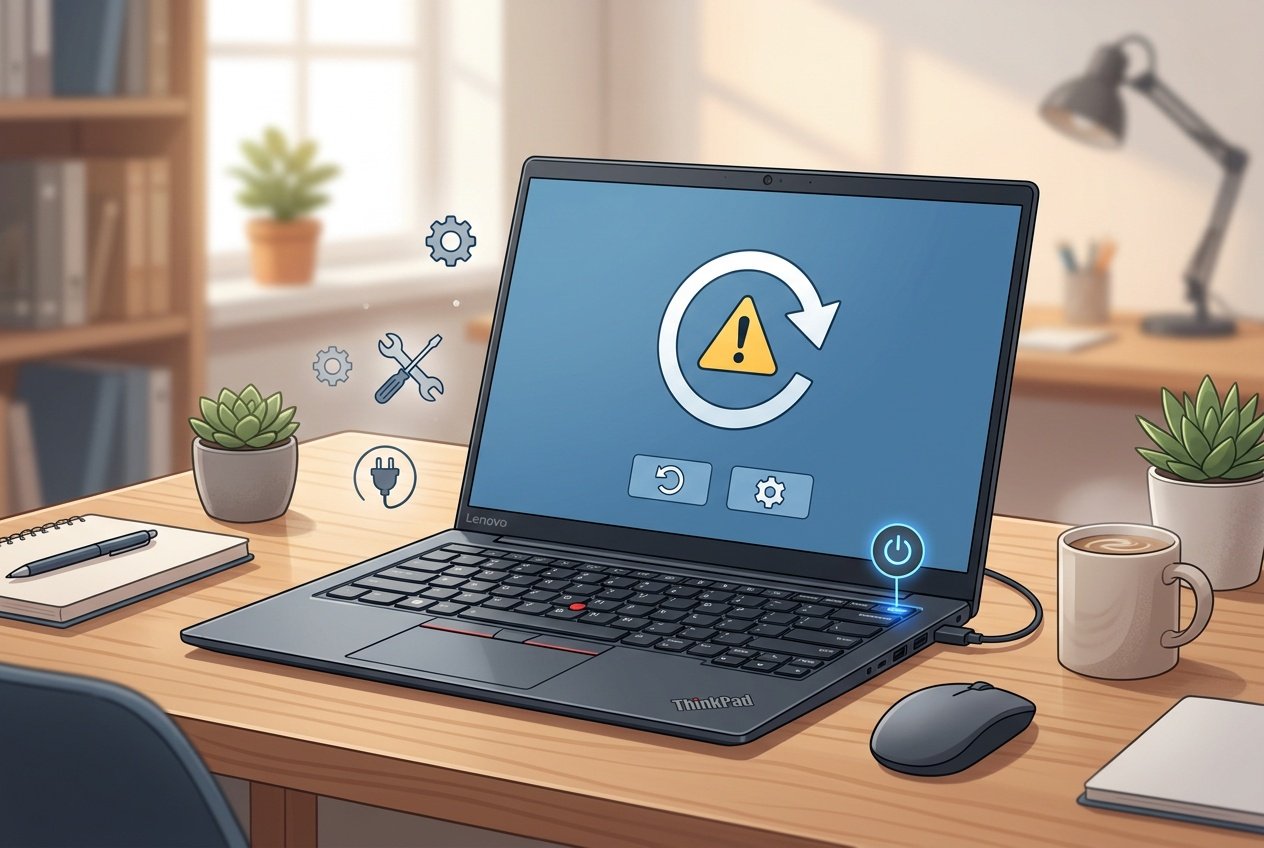
You can reset your Lenovo laptop even if you forgot the password or Windows fails to load. Use the Windows Recovery Environment, a recovery USB drive, or built‑in Lenovo boot keys to restore the system.
Factory Reset via Windows Recovery Environment
The Windows Recovery Environment (WinRE) lets you reset your Lenovo laptop without signing in.
If your PC reaches the login screen, press and hold Shift, then select Power > Restart.
If Windows will not start, turn the laptop on and off three times to trigger automatic repair.
When you see Choose an option, select:
- Troubleshoot
- Reset this PC
- Remove everything (required if you do not know the password)
You can then choose:
- Cloud download – downloads fresh Windows files
- Local reinstall – uses files already on your device
Cloud download needs internet access. Local reinstall works offline.
This method removes apps and personal files unless you choose Keep my files. Microsoft explains this process in its Windows recovery documentation, and detailed steps for Lenovo devices appear in this guide on how to factory reset a Lenovo laptop without a password.
Resetting with Recovery USB Media
Use a Windows recovery USB if your laptop will not enter WinRE.
First, create the USB on another working PC using Microsoft’s Media Creation Tool. Use a drive with at least 8 GB of space.
Next:
- Insert the USB into your Lenovo laptop.
- Turn it on and press F12 (or open the boot menu).
- Select the USB drive from the list.
When the Windows Setup screen appears, choose your language and click Install now. Select Custom: Install Windows only (advanced). Then choose the system drive to reinstall Windows.
This process deletes programs and files on the selected partition. Back up data if possible before you begin.
Using F11 or Alternative Boot Keys
Many Lenovo models include the Lenovo Recovery Environment. You can access it with a special key during startup.
Common options include:
- F11 during boot
- The Novo button (a small pinhole near the power port on some models)
Turn off the laptop. Press F11 repeatedly as you power it on, or insert a paper clip into the Novo button. Select System Recovery from the menu.
From there, choose:
- Restore from initial backup
- Or Reset this PC within the recovery tools
If your model supports it, this method reloads the factory image that came with the laptop. It restores original drivers and settings and removes user data unless you select a file‑preserving option.
Post-Reset Steps and Laptop Setup
After a reset, you must set up Windows, install the right drivers, and restore your files. Focus on security, system updates, and stable performance before you start daily work.
Initial Configuration After Reset
When your Lenovo laptop restarts, follow the on-screen setup. Select your region, language, keyboard layout, and Wi‑Fi network.
Sign in with your Microsoft account or create a local account. A Microsoft account lets you sync settings and use OneDrive.
Review these key settings:
- Privacy options: Turn off data sharing you do not need.
- Windows Hello: Set up a PIN or fingerprint if your model supports it.
- Device name: Rename your PC for easy network use.
Once you reach the desktop, check activation. Go to Settings > System > Activation and confirm Windows shows as activated.
If activation fails or features do not work, visit Lenovo support to download model-specific guides and tools.
Reinstalling Drivers and Updates
Install updates before adding personal files. Open Settings > Windows Update and click Check for updates.
Windows will install security patches, system fixes, and some drivers. Restart when prompted.
Next, install Lenovo-specific drivers. These may include:
- Chipset drivers
- Graphics drivers (Intel, AMD, or NVIDIA)
- Audio and touchpad drivers
- Power management tools
Use Lenovo Vantage or download drivers from the official support page for your exact model. If you need step-by-step help, review a detailed Lenovo hard reset guide that also explains recovery tools.
Avoid third-party driver sites. They often install the wrong version.
Restoring Data and Applications
Restore your files only after updates finish. Connect your external drive or sign in to your cloud storage.
Copy back folders such as:
- Documents
- Pictures
- Desktop files
- Work projects
Open a few files to confirm they load correctly. This helps you catch backup errors early.
Next, reinstall your main apps. Download them from official websites, not unknown sources. Enter product keys if required.
Install antivirus software before browsing the web or opening old downloads. Keep your system clean and updated from the start.
Troubleshooting Common Issues with Lenovo Reset
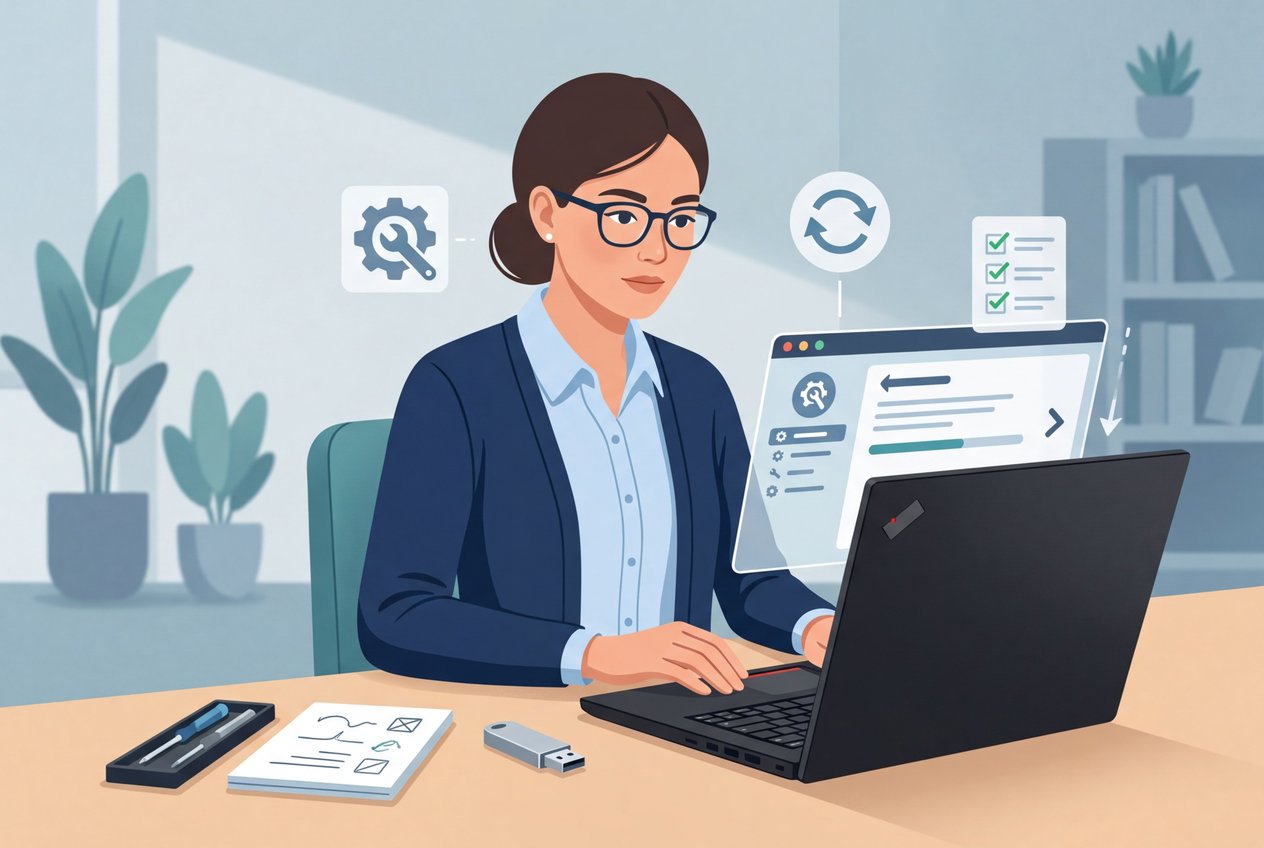
Reset problems often link to power issues, damaged system files, or hidden recovery settings. You can fix most errors by checking power, using Windows Recovery tools, or contacting Lenovo Support for device‑specific help.
Reset Not Starting or Failing
If Reset this PC will not launch or stops midway, check three basics first:
- Plug in your charger and confirm the battery holds a charge.
- Disconnect USB drives and external devices.
- Make sure you have at least 20 GB of free space.
In Windows 11, open Settings > System > Recovery > Reset PC, as outlined in this Lenovo laptop factory reset guide. If the reset fails, restart and enter Windows Recovery Environment (WinRE) by holding Shift while clicking Restart.
From WinRE, select Troubleshoot > Advanced options > Startup Repair. You can also open Command Prompt and run:
sfc /scannow
This command scans and repairs damaged system files. If errors continue, choose Cloud download instead of Local reinstall during reset. Cloud download replaces corrupted local files.
Missing Recovery Options
If you do not see Reset this PC or recovery settings, your system partition may be damaged or hidden.
First, press Win + I, then search for “Recovery.” If the page does not appear, open WinRE and check under Troubleshoot.
Some Lenovo IdeaPad and ThinkPad models include a small NOVO button near the power port. Press it while the laptop is off to open recovery mode. If that option is missing, the recovery partition may have been deleted during a past reinstall.
You can confirm this in Disk Management:
| What to Check | What It Means |
|---|---|
| No recovery partition listed | You must reinstall Windows manually |
| Partition exists but won’t load | Partition may be corrupted |
In that case, create a Windows installation USB from another computer and reinstall Windows using Microsoft’s Media Creation Tool.
Contacting Lenovo Support
If reset errors continue, contact Lenovo Support for model‑specific steps and warranty help. Visit the official Lenovo Support troubleshooting page to review common hardware and software problems before calling.
Have this information ready:
- Exact model number (bottom of the laptop)
- Windows version
- Error message shown during reset
If your laptop is under warranty, Lenovo may offer repair or recovery media. If hardware like the SSD has failed, no software reset will fix it. Support can confirm whether you need a replacement drive or professional service.
Final Thoughts
You can reset your Lenovo laptop in a few clear steps. Windows 11 and Windows 10 both offer the built-in Reset this PC feature, which lets you keep your files or remove everything. You can follow the detailed steps in this guide to factory reset a Lenovo laptop if you need a visual walkthrough.
Before you reset, decide what you need:
- Keep my files – removes apps and settings but keeps personal files.
- Remove everything – deletes files, apps, and settings.
- Cloud download or local reinstall – choose how Windows reinstalls.
Always back up important data, even if you choose to keep your files.
Use this quick comparison to guide your choice:
| Situation | Best Option |
|---|---|
| Fix slow performance | Keep my files |
| Remove malware | Remove everything |
| Sell or donate laptop | Remove everything + clean drive |
You now know when to reboot and when to reset, how to access recovery settings, and what each reset option does. With the right choice, you can restore your Lenovo laptop safely and with fewer issues.