

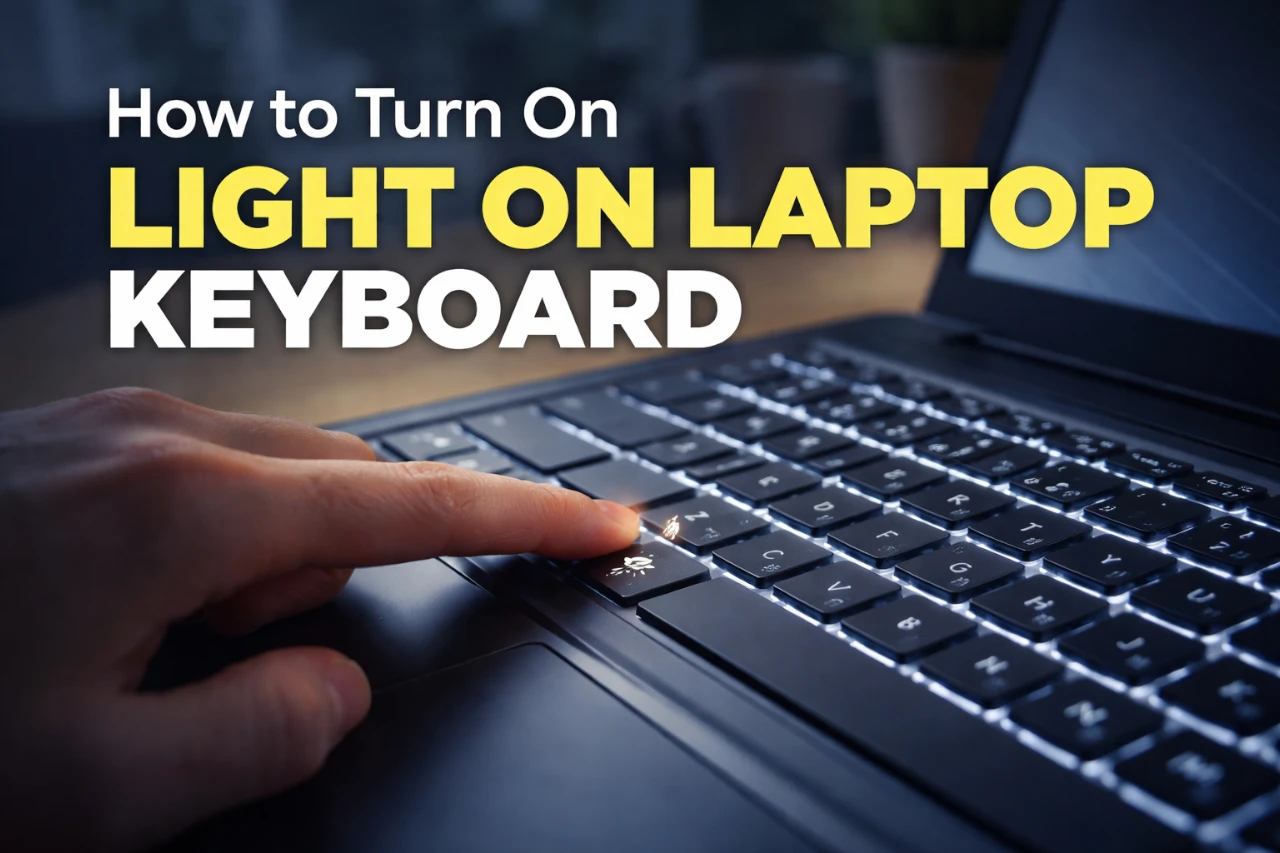
You often work in low light, and a dark keyboard slows you down. Turning on the keyboard light helps you type faster and avoid mistakes, especially at night or on the go.
You usually turn on the laptop keyboard light by pressing the Fn key plus a key with a keyboard or light icon, often one of the F keys.
Some laptops also let you change the brightness or turn it on in Windows settings or built‑in software.
This guide shows how to check if your laptop supports keyboard lighting, use the right keys, adjust settings, and fix common problems when the light does not turn on.
Key Takeaways
- You can turn on keyboard lighting with a shortcut key or system setting.
- Not all laptops support backlit keyboards, so checking matters.
- Simple fixes can solve most keyboard light issues.
Check If Your Laptop Supports Keyboard Lighting

Before you try any shortcuts, confirm that your device actually includes a backlit keyboard. Many laptops look similar, but only some models support a laptop keyboard backlight. You can check the model, the manual, and the keys themselves to avoid wasted time.
Identifying Backlit Keyboard Models
Manufacturers often limit keyboard backlighting to certain trims. Budget models may skip it, while midrange and premium versions usually include it.
You can spot this quickly by checking your exact model number on the brand’s website. Look for terms like backlit keyboard or keyboard light in the specs. Retail listings and product pages usually list this clearly.
Common patterns help, but they do not guarantee support:
| Brand | Typical Backlit Models |
|---|---|
| Dell | Inspiron 5000+, XPS, Latitude |
| HP | Pavilion, Envy, Spectre |
| Lenovo | ThinkPad, IdeaPad Pro |
| Acer | Aspire 5+, Nitro |
| ASUS | VivoBook Pro, ZenBook |
Guides like this overview of Windows laptop keyboard lighting options confirm that model support varies even within the same product line.
Consulting Your Laptop’s Manual or Manufacturer
Your user manual gives the most reliable answer. Most manuals include a keyboard diagram that labels the keyboard light key or notes if the feature is missing.
You can find the manual by searching your laptop model plus “user manual” on the manufacturer’s site. Check the keyboard or input section, not general settings.
If the manual lists shortcuts like Fn + Space or Fn + F9, your laptop supports a keyboard backlight. If the manual never mentions lighting, your keyboard likely lacks it.
General support guides, such as Lifewire’s explanation of how keyboard lighting works on laptops, also note that software cannot add lighting if the hardware is not built in.
Recognizing Keyboard Light Icons
Many laptops show backlight support right on the keys. Look closely at the function row and spacebar area.
Common symbols include:
- A keyboard icon with light rays
- A sun or glow symbol
- A keyboard with lines above it
These icons usually sit on F-keys and work with the Fn key. Pressing them cycles brightness or turns the keyboard light off.
If your keys have no lighting icons at all, that is a strong sign your keyboard does not support backlighting. External keyboards often use dedicated buttons instead, which helps avoid confusion when switching devices.
Using Function Keys and Keyboard Shortcuts
You can turn on the keyboard light fast with built-in keys. Most laptops use a keyboard light key, often paired with the Fn key, to control keyboard lighting levels.
Locating the Keyboard Light Key
Look at the top row of keys on your keyboard. You want a key with a sun, glow, or keyboard with rays icon. This icon marks the keyboard backlight button.
The exact key changes by brand and model. Some laptops place it on F5, F9, or F10. Others use Spacebar or Esc with a lighting icon. If you do not see an icon, your laptop may not have a backlit keyboard.
Manufacturers do not follow one standard layout. This is common across Windows laptops, as noted in guides on how to identify the correct key by brand and model from Windows keyboard light guides.
Pressing the Fn Key with the Lighting Button
Many laptops require you to hold the Fn key while pressing the keyboard light key. This tells the system you want to control keyboard lighting instead of the key’s normal action.
Press Fn + the lighting key once to turn on the keyboard light. Press it again to change brightness levels. Most systems cycle through low, high, and off.
If nothing happens, check Fn Lock. Some keyboards reverse behavior when Fn Lock is on. Try pressing Fn + Esc to toggle it, then test the lighting shortcut again.
Typical Key Combinations by Brand
Brands reuse common patterns. This table shows frequent shortcuts you can try right away.
| Brand | Common Shortcut to Turn On Keyboard Light |
|---|---|
| Dell | Fn + F5 or Fn + F10 |
| Lenovo | Fn + Spacebar or Fn + Esc |
| Acer | Fn + F9 |
| HP | Fn + F5, Fn + F4, or Fn + Spacebar |
These shortcuts reflect widely reported setups across Windows laptops, including examples covered in guides on turning on keyboard lights by brand.
If your keys differ, search your model number with “control keyboard lighting” to confirm the exact shortcut.
Adjusting Keyboard Lighting Through System Settings
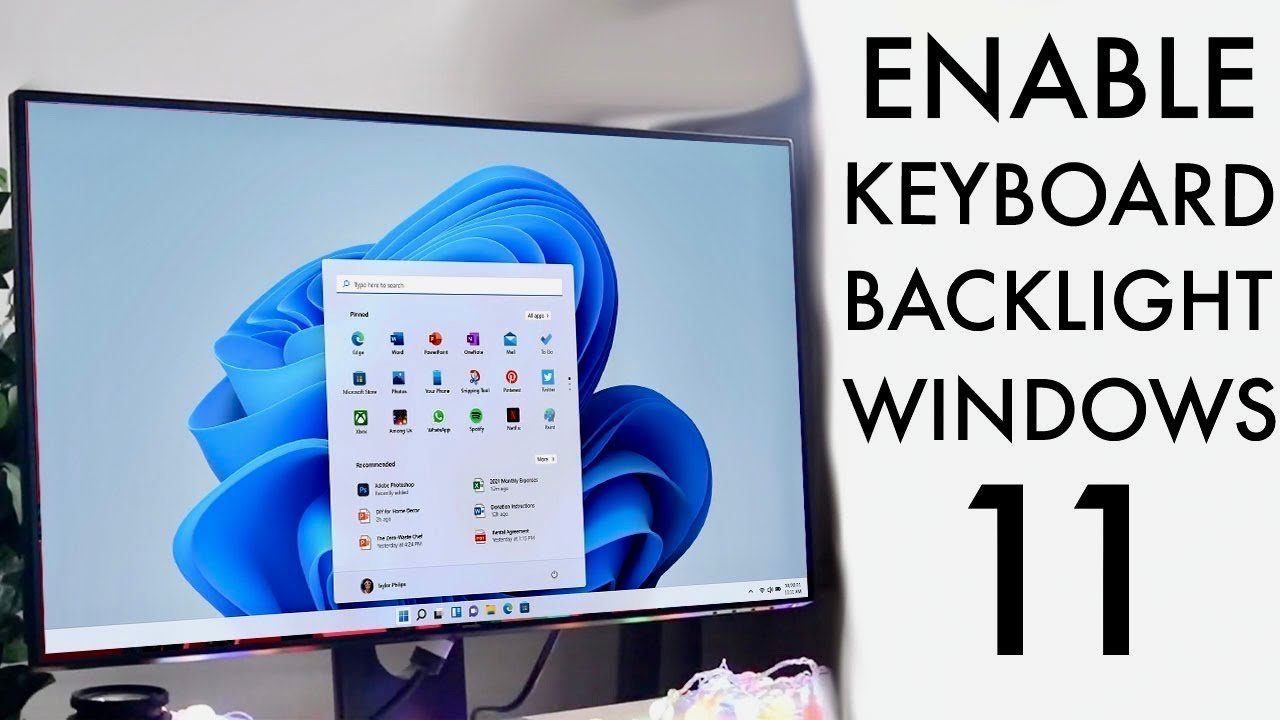
System settings give you direct control over keyboard illumination without using shortcut keys. You can turn keyboard lighting on or off, adjust brightness, and fix common issues from built-in menus on Windows, macOS, and Chromebooks.
Windows Mobility Center for Lighting Controls
On many Windows laptops, Windows Mobility Center includes keyboard lighting controls. You open it by typing Windows Mobility Center in the Start menu search.
If your laptop supports it, you see a Keyboard Backlight or Keyboard Brightness tile. Use the slider to change brightness or switch the light off to save battery. This works well when shortcut keys fail or behave inconsistently.
Not all models show this option. Support depends on your laptop brand and drivers. Microsoft and device makers explain this limitation in guides on how to turn keyboard lighting on or off on a Windows computer.
Enabling Keyboard Backlight on macOS
On MacBooks with keyboard illumination, you control lighting through System Settings. Open System Settings > Keyboard, then adjust the Keyboard Brightness slider.
macOS can also manage lighting automatically. The system lowers or turns off the backlight in bright rooms and increases it in low light. Apple uses built-in light sensors for this behavior, which reduces battery drain while keeping keys visible. Lifewire explains how Macs handle this in its guide on keyboard light activation on macOS.
If you want full manual control, turn off automatic brightness. You can then raise or lower keyboard backlight controls yourself.
Changing Lighting via Chromebook Settings
Chromebooks handle keyboard lighting through Settings, not a separate control app. Open Settings > Device > Keyboard. If your model supports keyboard illumination, you see brightness options there.
Some Chromebooks also let you adjust lighting with Alt + Brightness Up/Down keys. These controls work only on backlit models, usually midrange or higher devices.
Google ties keyboard backlight controls closely to power settings. When your battery runs low, ChromeOS may dim or turn keyboard lighting off. This behavior matches how other systems manage backlight power, as noted in general laptop guides like this overview of keyboard backlight controls on laptops.
Customizing and Enhancing Keyboard Backlighting
You can control keyboard lighting to match your room, save battery, or improve comfort. Small changes like keyboard brightness and lighting modes make daily typing easier and reduce eye strain.
Adjusting Keyboard Brightness Levels
You can change keyboard brightness using keys on your laptop. Most models use Fn + a function key with a light icon. Brands differ, so try keys like F5, F9, F10, or the spacebar.
If keys do not work, use Windows tools. On many systems, you can open the Mobility Center and adjust keyboard brightness there. This method works on several Windows laptops and helps when hardware keys fail, as explained in guides on turning keyboard lighting on or off on a laptop.
Tips for better results
- Use lower brightness in dark rooms.
- Increase brightness only when needed.
- Check BIOS if brightness stays locked.
Using Manufacturer Software and Apps
Many brands offer software to control keyboard lighting. HP, Dell, Lenovo, and gaming brands often include apps that manage brightness, timeouts, and profiles.
If lighting does not respond, software may override the keys. You need to open the app and enable lighting there. This issue shows up often on Windows laptops, as noted in guides on how to turn keyboard lighting on or off on a computer.
What software can control
- Keyboard brightness steps
- Auto-off timers
- Per-key or zone lighting
Always restart after changes so settings apply fully.
Exploring Dynamic Lighting and RGB Features
Some laptops and keyboards support dynamic lighting. These systems use RGB LEDs that change color or react to typing. You control these features through brand software, not Windows alone.
Dynamic lighting looks nice, but it uses more power. If you want longer battery life, set a static color or lower brightness. Guides on turning keyboard lights on or off in Windows explain this tradeoff clearly.
Common lighting modes
- Static color
- Breathing or wave effects
- Key press reaction
If you only need visibility, simple white light works best.
Troubleshooting Keyboard Lighting Issues

When keyboard lights fail, the cause often comes from software settings, outdated drivers, or power limits. You can fix most issues by running built‑in tools, updating system software, and checking how your laptop manages power and connected hardware.
Running the Keyboard Troubleshooter
Start with Windows tools that look for common problems. Open Settings > System > Troubleshoot > Other troubleshooters, then run the Keyboard troubleshooter. It checks settings that control input devices and can reset options that block you from being able to turn keyboard lighting on.
If the troubleshooter reports no issues, do not stop there. Some laptops rely on brand tools instead of Windows defaults. Manufacturers like Lenovo, Dell, and HP often manage keyboard lights through their own apps. Guides like this walkthrough on fixing a keyboard backlight not working on Windows explain where those controls usually live.
For external or large print backlit keyboard models, reconnect the keyboard and test another USB port before changing settings.
Updating Drivers and BIOS
Outdated drivers often block lighting controls. Open Device Manager, expand Keyboards, and update each listed device. Also update Human Interface Devices, since many backlit keyboards depend on those drivers.
Check your laptop maker’s support site for BIOS updates. BIOS firmware controls low‑level hardware features, including keyboard power. If it is outdated, lighting keys like Fn + Space or Fn + F10 may stop responding. This matters even more on systems that use brightness steps instead of a simple on/off switch.
Step‑by‑step guidance on driver and firmware fixes appears in this guide on fixing keyboard lights not working on Windows. Follow the order shown there to avoid conflicts.
Resolving Power Saving and Hardware Conflicts
Power settings can disable keyboard lights to save battery. Open Windows Mobility Center and look for Keyboard Brightness controls. Some systems hide this option unless the laptop runs on AC power. Lifewire explains how these settings affect your ability to activate a keyboard light on Windows laptops.
Also check BIOS power options such as USB power saving or adaptive backlight. These features may shut off lighting when idle. For Bluetooth keyboards, turn Bluetooth off for 30 seconds, then reconnect. MakeUseOf outlines hardware checks that help confirm whether the issue is software‑based or tied to the keyboard itself in this guide on fixing a backlit keyboard that is not working.
If lighting still fails, confirm that your model actually supports backlighting, since some keyboards do not include this feature.
Final Thoughts
You now know how to turn on light on laptop keyboard using the fastest options first. Shortcut keys work on most laptops, while Windows Mobility Center and brand software help when keys fail. BIOS settings act as a last step if the light never turns on.
Use the method that fits your device and situation. If you travel or work at night, keep brightness low to save battery. Many laptops let you adjust intensity or timeout, which reduces power drain, as noted in guides on turning keyboard lighting on or off in Windows.
To avoid common mistakes, keep these checks in mind:
- Confirm your model supports backlighting. Not all keyboards include it.
- Update drivers if the light stops responding.
- Try software tools before BIOS changes. Step-by-step help appears in this keyboard light activation guide for Windows and Mac.
If nothing works, your keyboard may lack a backlight or need service. Practical walk-throughs for hardware and software controls can help you double-check, like this guide on turning keyboard lighting on or off on a computer.